No App ID needed – or use one
Connections use your own sign-in – password, MFA and Conditional Access on Microsoft's own page. Nothing to register in Azure. If your IT prefers an app registration, connect with an App ID and certificate instead.
SharePoint Migrator moves sites, lists, libraries and file shares into SharePoint Online – signed in as you, with MFA, and with every version, author, date and permission intact.
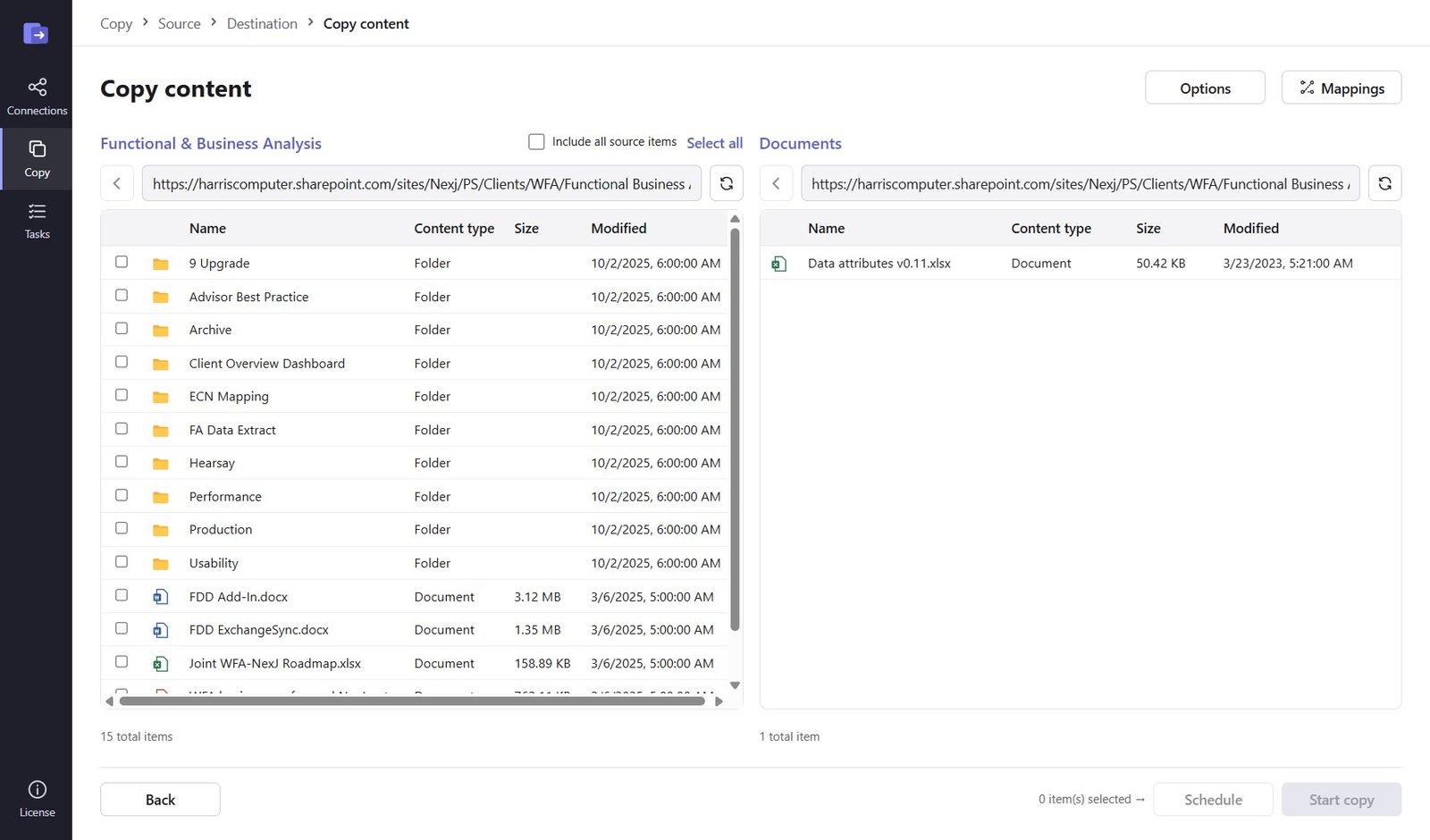
Built for IT administrators who need a faithful copy, a clear report and no surprises for their users.
Connections use your own sign-in – password, MFA and Conditional Access on Microsoft's own page. Nothing to register in Azure. If your IT prefers an app registration, connect with an App ID and certificate instead.
Version history, Created/Modified dates, authors and editors, lookups, managed metadata and attachments arrive exactly as they were.
Unique permissions, SharePoint groups and permission levels are recreated. Map old accounts to new ones by e-mail or CSV.
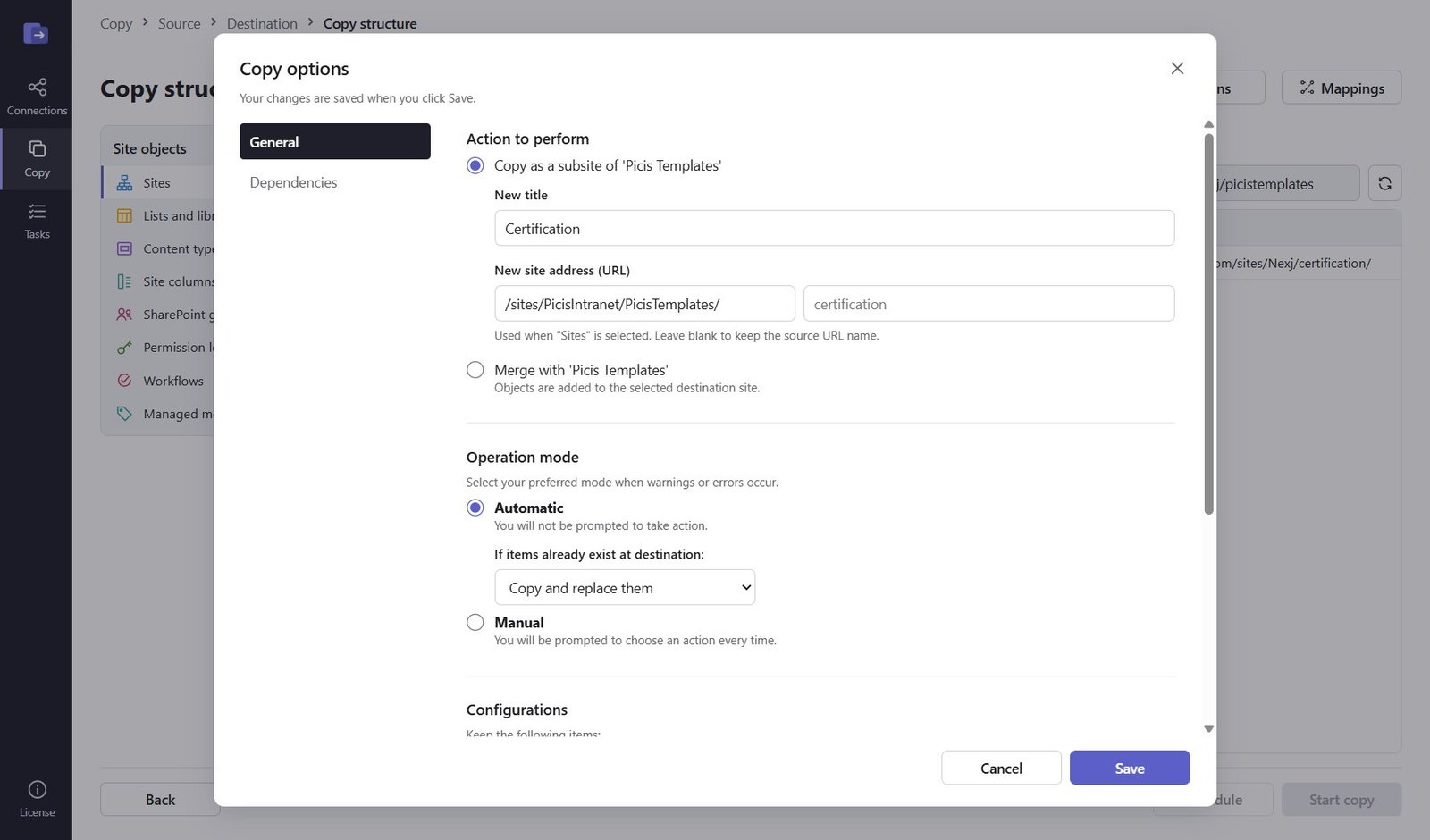
Sites and subsites, lists, libraries, content types, site columns, views and navigation – with links rewritten to the new location.
Re-run a migration with "Copy if newer" to catch up on changes before cut-over. Nothing is duplicated.
Permissions are assigned directly – no sharing invitations, no notification e-mails sent to anyone during the migration.
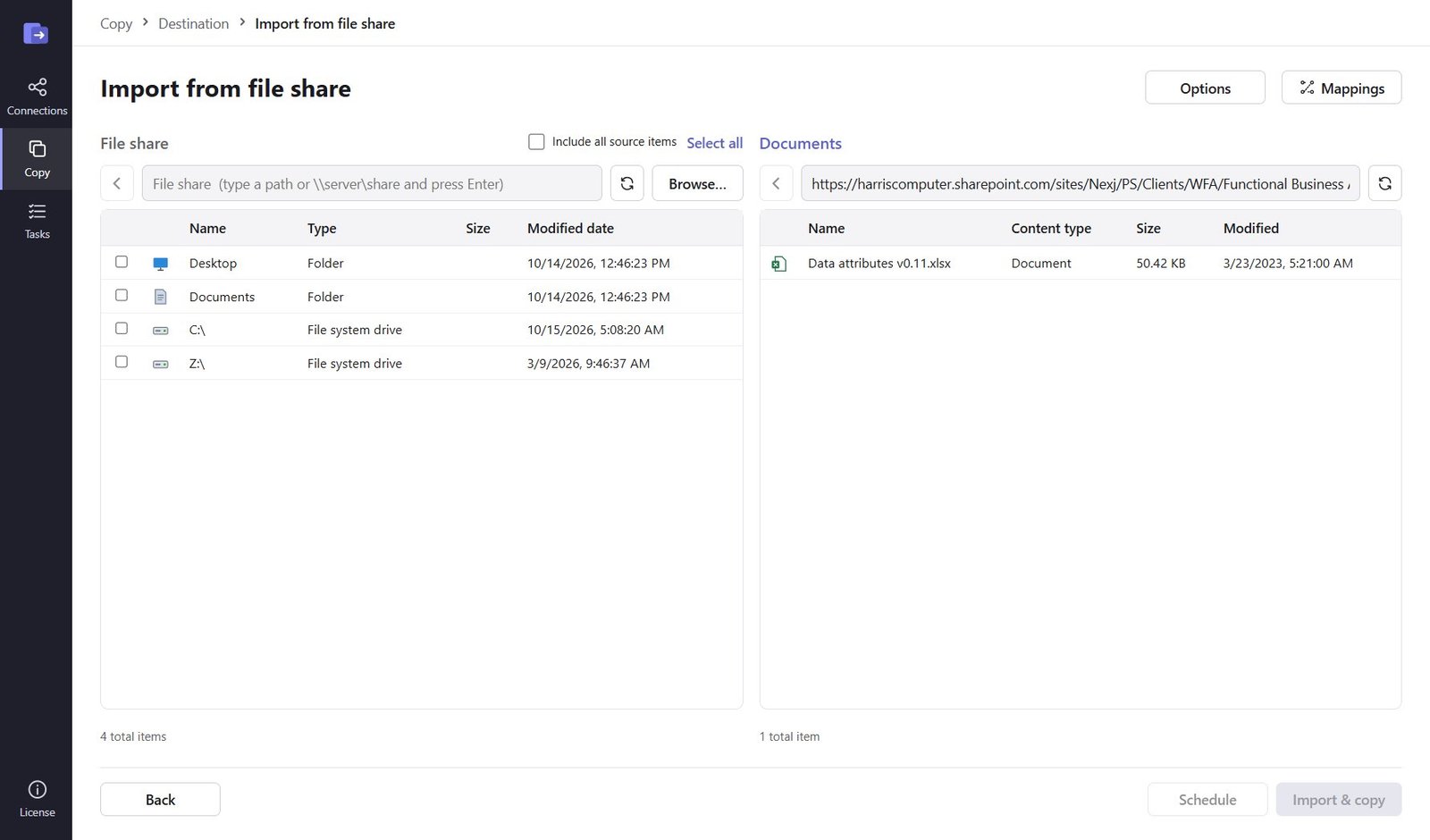
Add your source and destination: SharePoint Online with Microsoft sign-in and MFA, on-premises SharePoint with Windows authentication, or a file share.
Pick sites, lists or folders in the side-by-side explorer. Set conflict rules, versions to keep and user mappings once – they're remembered.
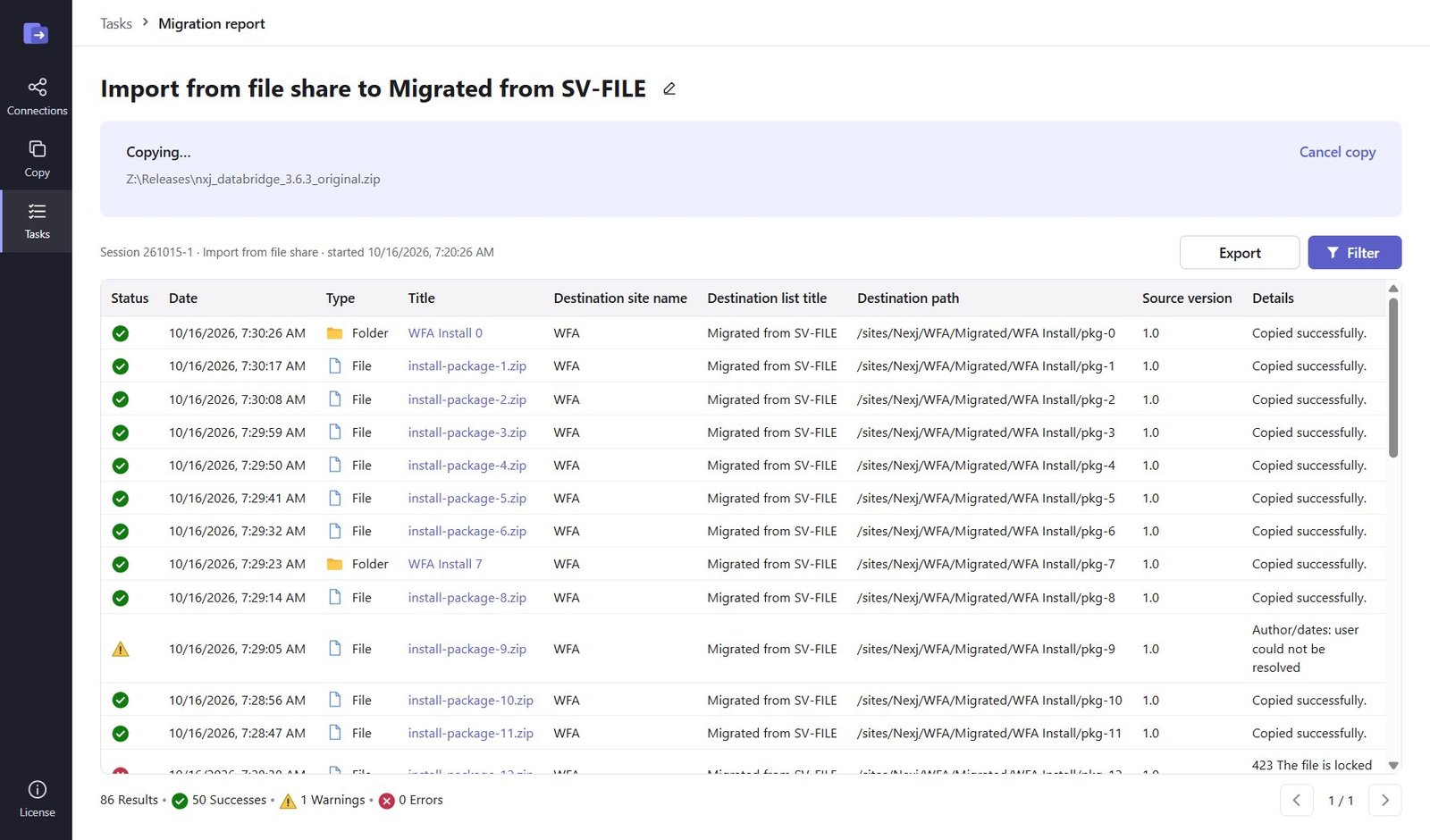
Start now or schedule it. Follow progress live and export a per-item report with every success, warning and error.
Select a site and SharePoint Migrator copies it with everything beneath it: libraries with their history, lists with every column type, groups, permission levels and navigation.
Browse source and destination side by side. Select folders, sub-folders or single files – from SharePoint or straight from a Windows drive or network share.
Every task records each file, item, folder and object with its destination path and outcome. Filter, page through and export to CSV.
| Source | Destination | Sign-in | Supported |
|---|---|---|---|
| SharePoint Server 2010 – 2019 / Subscription Edition | SharePoint Online | Windows (NTLM/Kerberos) → Microsoft 365 + MFA | Yes |
| SharePoint Online (tenant to tenant, site to site) | SharePoint Online | Microsoft 365 + MFA on both sides | Yes |
| Windows file shares, NAS, local drives | SharePoint Online / Teams files | Your Windows account → Microsoft 365 | Yes |
| SharePoint Online | SharePoint Server (on-premises) | Microsoft 365 → Windows authentication | Yes |
| Google Drive (My Drive, shared drives) | SharePoint Online / OneDrive | Google Workspace service account or Google sign-in → Microsoft 365 | Yes in O365 Migration |
| Gmail (mail, contacts, calendars) | Exchange Online | Google Workspace service account → Entra ID App ID | Yes in O365 Migration |
SharePoint Migrator runs on your PC and talks only to your SharePoint and your file shares. There is no cloud relay and no third-party copy of your content.
It can do exactly what your account can do – nothing more. Site Collection Administrator on the destination is recommended.
Sign-in happens on Microsoft's page. Stored Windows passwords are encrypted for your Windows profile only.
Each license runs on one PC. Moving it is self-service: deactivate on the old machine, activate on the new one.
Our consultants use the same tool to plan and execute your migration – from a quick assessment to a fully managed move with cut-over support.
Download SharePoint Migrator, connect your sites with your own sign-in and copy up to 500 items free for 7 days.