New O365 Migration

Your whole Microsoft 365 move, one app.

O365 Migration moves SharePoint sites, Teams and Groups, OneDrive and Exchange mailboxes to a new tenant – planned with CSV files, followed in one report, and covered by one license.
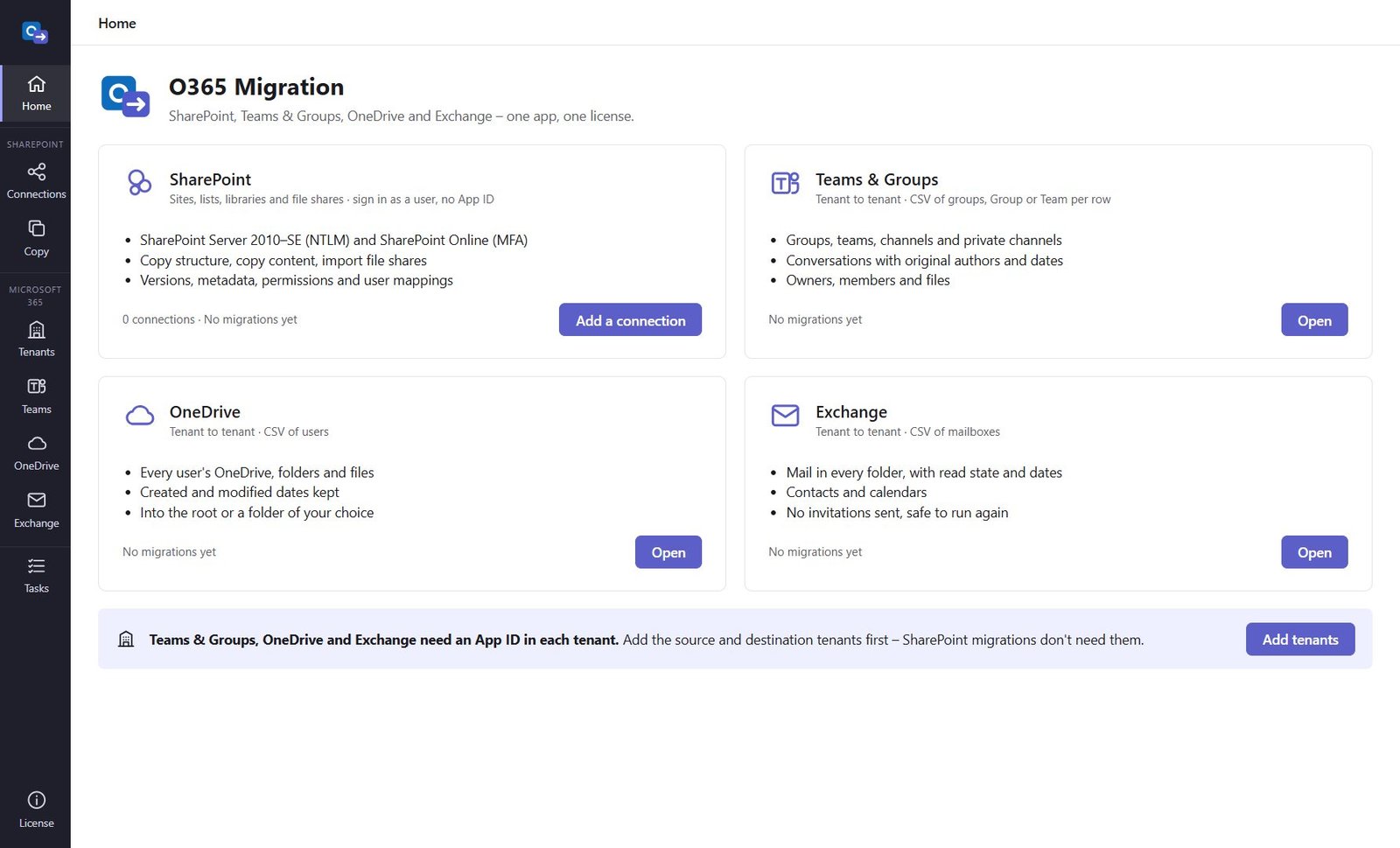
  • One license for all four
  • CSV-driven
  • Safe to run again
O365 Migration home screen with SharePoint, Teams & Groups, OneDrive and Exchange
Mailboxes migratedNo invitations sent
Six workloadsOne license
SharePoint 2010–SE & Online Teams & Microsoft 365 Groups OneDrive Exchange mail, contacts & calendars Google Drive Gmail
Six workloads

Everything a tenant-to-tenant migration needs

Use one part or all six – every migration lands in the same task list and per-item report.

SharePoint

Everything in SharePoint Migrator: sites, lists, libraries and file shares from SharePoint 2010–SE or Online, with versions, metadata and permissions. Signs in as a user – no App ID.

Teams & Groups

A CSV of groups with Group or Team per row. Channels, private channels, conversations with original authors and dates, owners, members and files.

OneDrive

A CSV of source and destination users. Every folder and file with its dates, into the root or a folder of your choice. Large files copied in parts.

Exchange

A CSV of mailboxes. Mail in every folder with read state and dates, contacts and calendars – events created without sending invitations.

Google Drive to SharePoint and OneDrive

My Drive, Shared with me and shared drives into any SharePoint or OneDrive library. Google Docs, Sheets and Slides become PDF or Word, Excel and PowerPoint files; folders, dates and owners are kept, and a second run copies only what changed. Connect with a Google Workspace service account (any user's Drive) or sign in with Google. Setup guide

Gmail to Exchange Online

A CSV of Gmail addresses and Microsoft 365 mailboxes. Mail with its labels as folders (or as categories), read state, stars and attachments; contacts; and calendars with recurring events – created without sending invitations. Run it again for a catch-up before you switch MX records. Setup guide

How it works

Plan with CSV files, run, verify

Connect

SharePoint connections sign in as you (MFA, NTLM). For Teams, OneDrive and Exchange, add each tenant with an Entra ID App ID – the app checks the permissions per feature.

List

Import CSV files of groups, users and mailboxes – or pick them from the source and fill destinations by domain. Click Check to find problems before you start.

Migrate & repeat

Start now or schedule. Run again before cut-over: only new and changed items move, nothing is duplicated.

Exchange

Mailboxes that look like they always lived there

Every folder, every message with its received and sent dates and read state, attachments, contacts and calendars – imported as received mail, not drafts.

  • Inbox, Sent Items and Archive matched in any language
  • No meeting invitations sent to anyone
  • Re-runs add only what is new
Exchange screen with source and destination mailboxes, both found, and mail, contacts and calendar options
Teams & Groups

Group or Team – per row

Rename and re-alias as you go. Conversations keep their authors and dates, imported with Microsoft's Teams migration API.
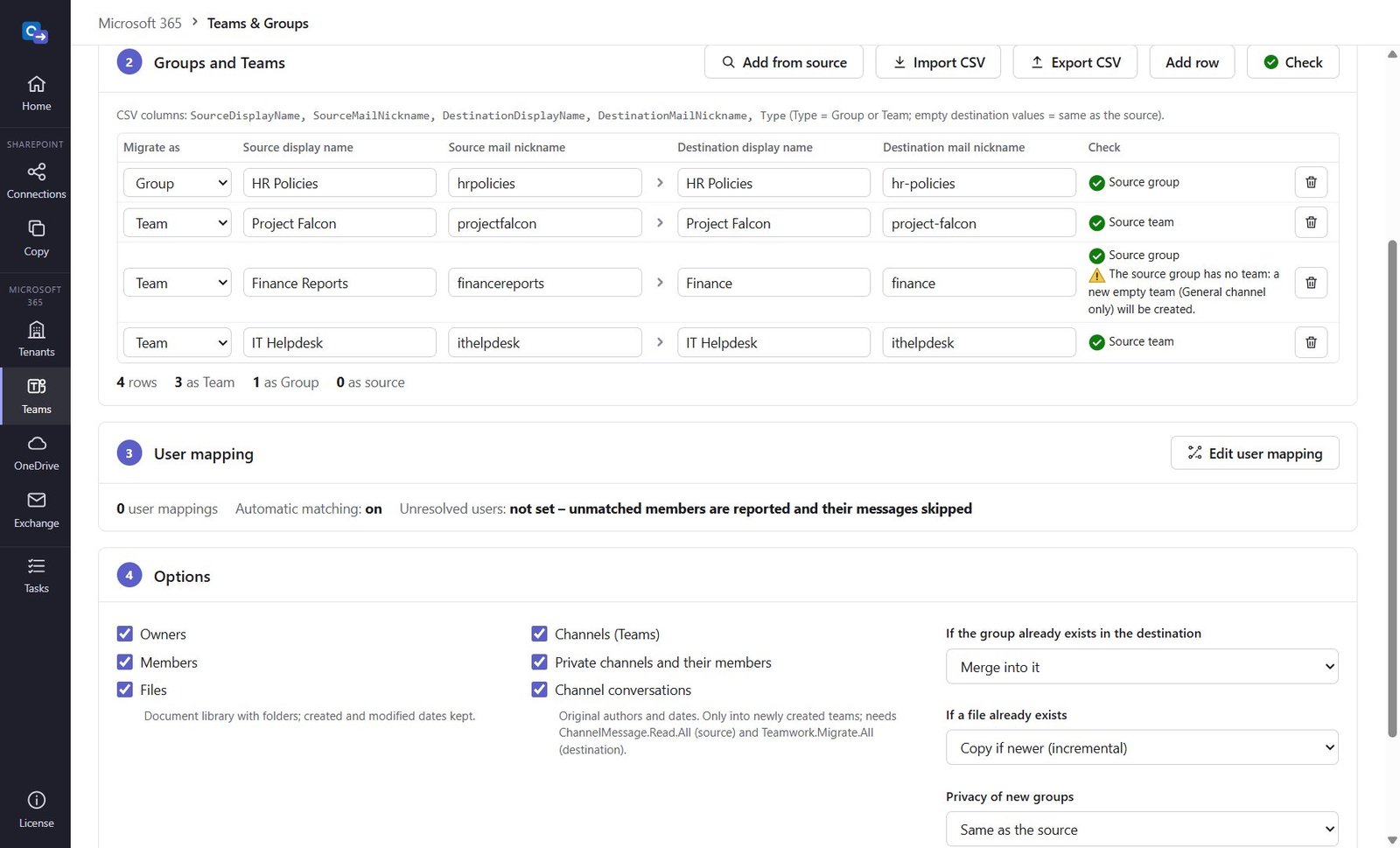
  • Channels and private channels with members
  • User mapping: CSV, automatic, fallback account
  • Group files and channel folders with dates
Teams & Groups list with Group or Team per row and check results
OneDrive

Every user's files, dates intact

Copy each OneDrive into the new tenant – into the root, or a folder such as "From Contoso" so nothing gets mixed up.
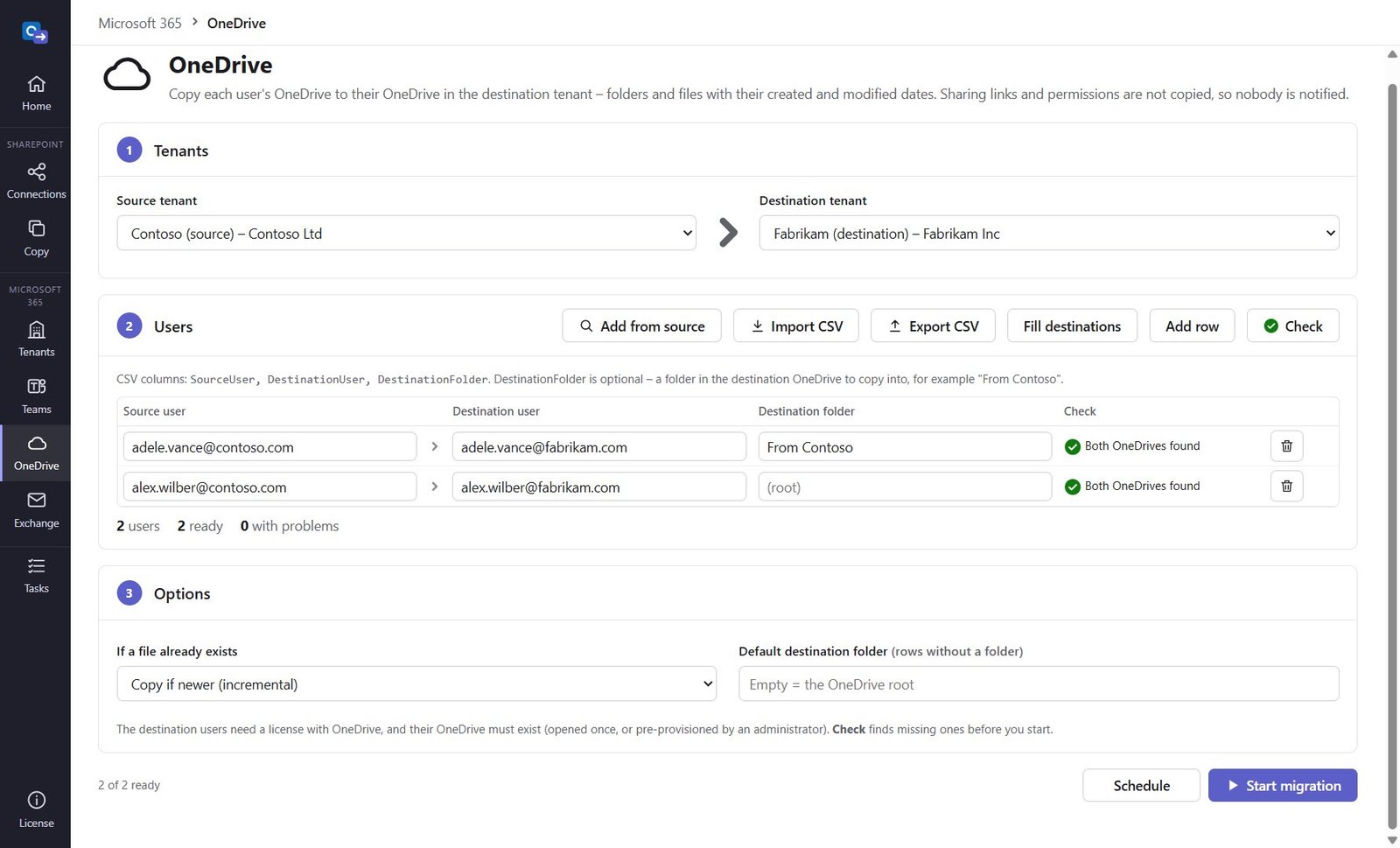
  • Check finds users without a OneDrive before you start
  • Copy if newer for the final catch-up
  • No sharing notifications
OneDrive screen with source and destination users and destination folders
Questions

Good to know

How is O365 Migration different from SharePoint Migrator?
SharePoint Migrator migrates SharePoint only. O365 Migration includes the same SharePoint features plus Teams & Groups, OneDrive and Exchange – all under one license per computer.
Can it migrate Google Drive?
Yes. O365 Migration imports Google Drive folders and files – My Drive, Shared with me and shared drives – into SharePoint and OneDrive libraries. Google Docs, Sheets and Slides are converted to PDF or Office files. Use a Google Workspace service account with domain-wide delegation, or sign in with a Google account. See the Google Drive guide.
Can it migrate Gmail to Microsoft 365?
Yes. O365 Migration copies Gmail mail (labels become folders), contacts and calendars into Exchange Online mailboxes from a CSV of users. It reads Google with a Workspace service account and writes with an Entra ID App ID in your tenant. Nobody receives invitations, and running it again only adds new items. See the Gmail guide.
Does it need an App ID?
Only for Teams & Groups, OneDrive and Exchange, which work tenant to tenant with Microsoft Graph application permissions. SharePoint migrations sign in as a user. Our step-by-step guide lists the permissions per workload.
Will users receive e-mails or meeting invitations?
No. Permissions are assigned without sharing notifications, sharing links are not migrated, and calendar events are created without sending invitations – the attendees are noted in each event.
What isn't migrated?
For Teams: shared channels, private channel conversations, tabs, Planner and chats. For Exchange: rules, shared and delegated calendars, archive mailboxes and public folders. Everything not migrated is listed in the report. Details in the knowledge base.