Before you start
- Connections to the source and destination SharePoint hosts.
Step 1: Download the template
Open Copy → Bulk copy from CSV → Download CSV template. It contains an example of every kind of row.
Step 2: Fill the CSV
One row per migration:
| Column | What to enter |
|---|---|
| Type | Site, List, Folder (a library, folder or file) or FileShare |
| SourceUrl | Address of the site, list, folder or file – or \\server\share |
| DestinationUrl | The site, library or folder to copy into |
| Options | Optional, e.g. permissions=no;versions=10;conflict=ifnewer; for Site rows action=subsite;url=finance;title=Finance |
| SourceConnection / DestinationConnection | Optional connection names – empty = found from the address |
Step 3: Open the CSV – every row is checked
Click Open CSV file…. Each row is checked: connection, site, list and folder. Ready rows get a green tick; rows with problems are explained and skipped – fix them in the file and open it again.
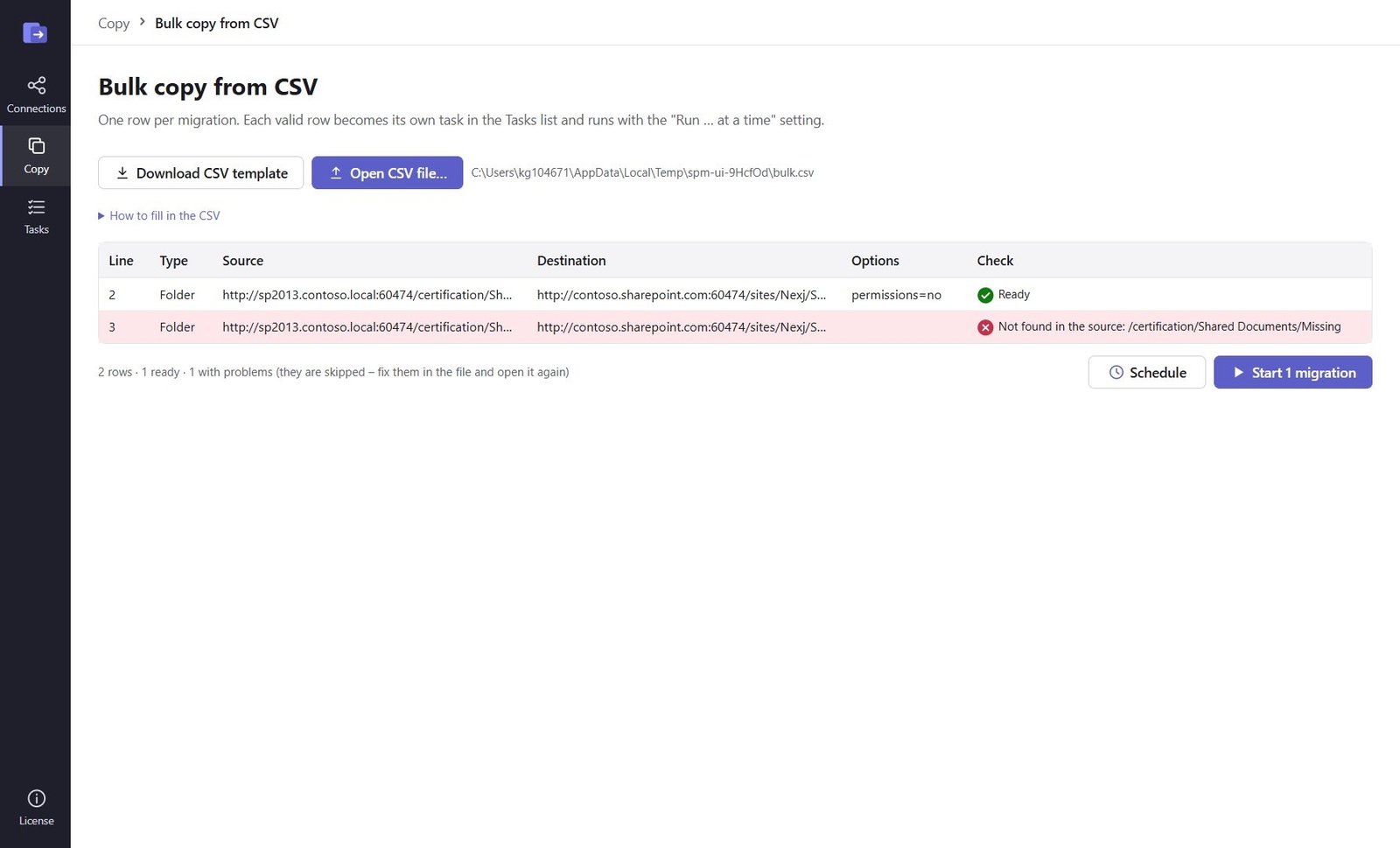
Step 4: Start or schedule
Click Start or Schedule. Every valid row becomes its own task in Tasks and runs with the Run … at a time setting (up to 10).
Good to know
- Leave Options empty for incremental copies (merge, copy if newer) – run the same CSV again for a catch-up.
Need help?
Search the help center, open a support ticket, or let us run the migration for you.
Related guides
Schedule migrations, run them in parallel and catch up incrementally
Start and end date and time, the Scheduled tab, up to 10 at a time, edit and run again.
4 steps · 5 minutesMigrate file shares to SharePoint Online and OneDrive
Windows file shares, NAS and local folders into a SharePoint or OneDrive library – folders and dates kept.
5 steps · 10 minutes