Before you start
- Any migration set up on a copy or migration screen.
Step 1: Schedule with a start and end date and time
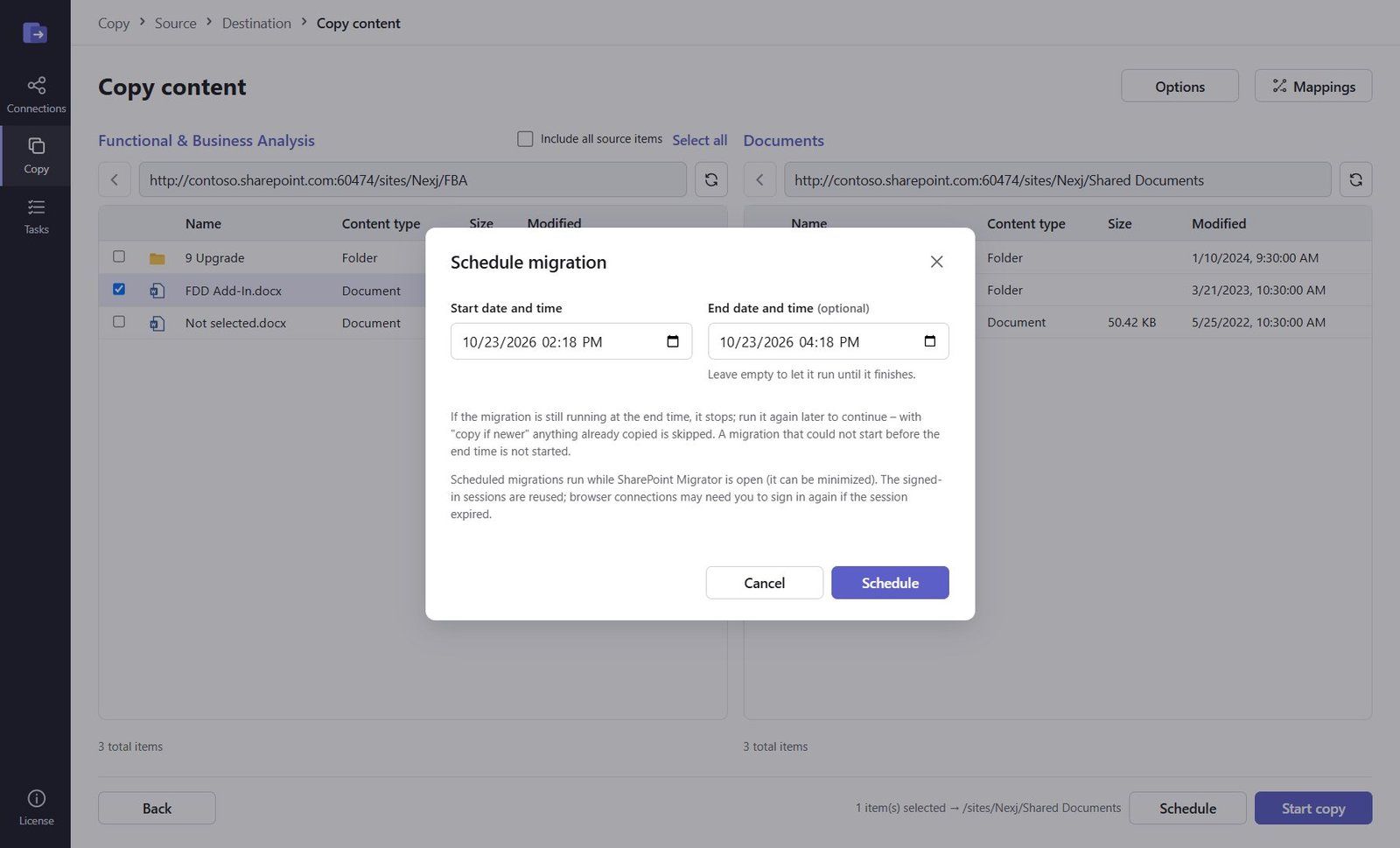
On any copy or migration screen click Schedule. Pick the start date and time and, optionally, an end date and time – for example 20:00 to 06:00 outside business hours. A migration still running at the end time stops; run it again later to continue. The app must be open (it can be minimized).
Step 2: See and change every scheduled migration
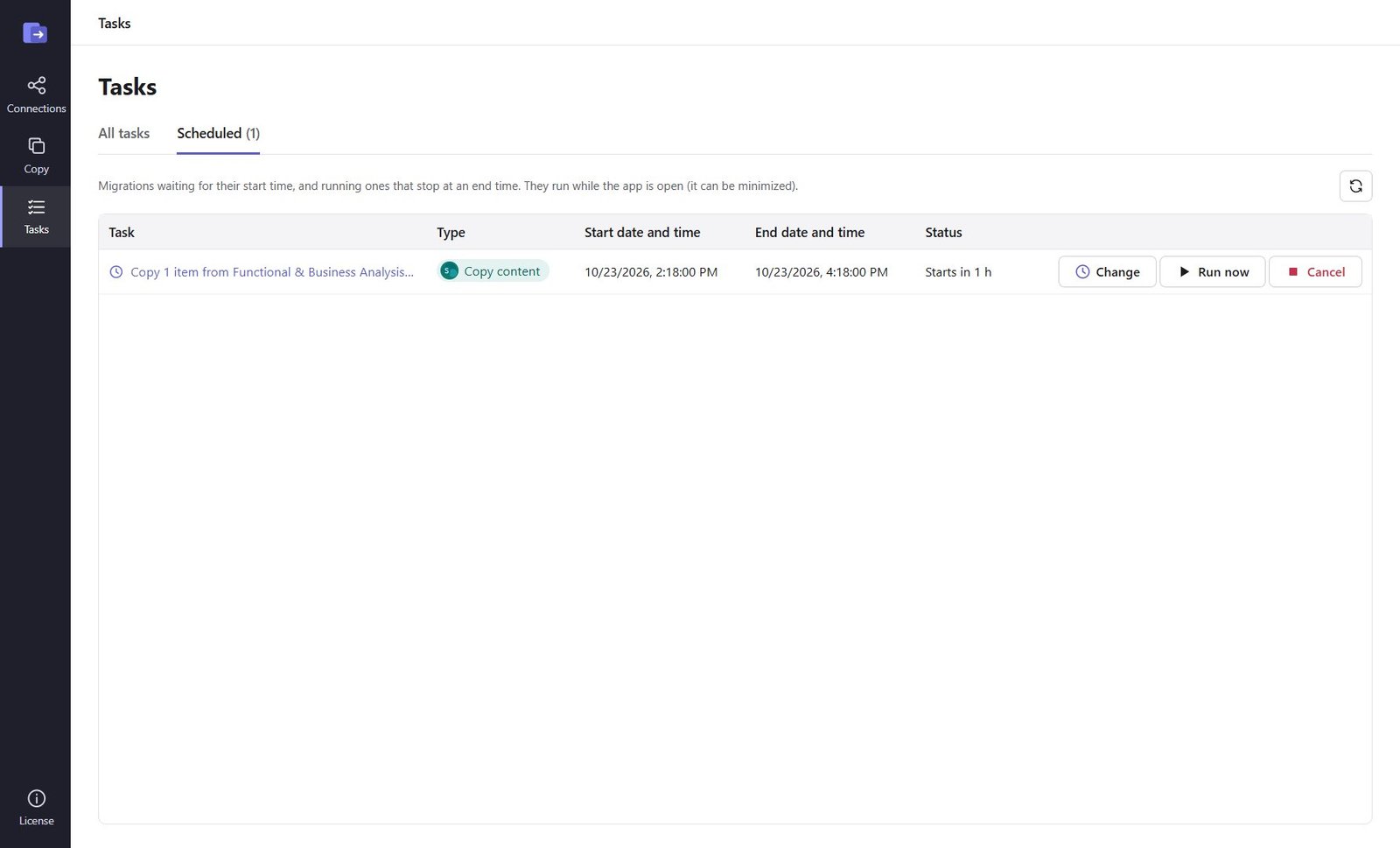
Tasks → Scheduled lists each migration with its start and end. Change moves the times, Run now starts it at once, Cancel removes it.
Step 3: Run several at the same time
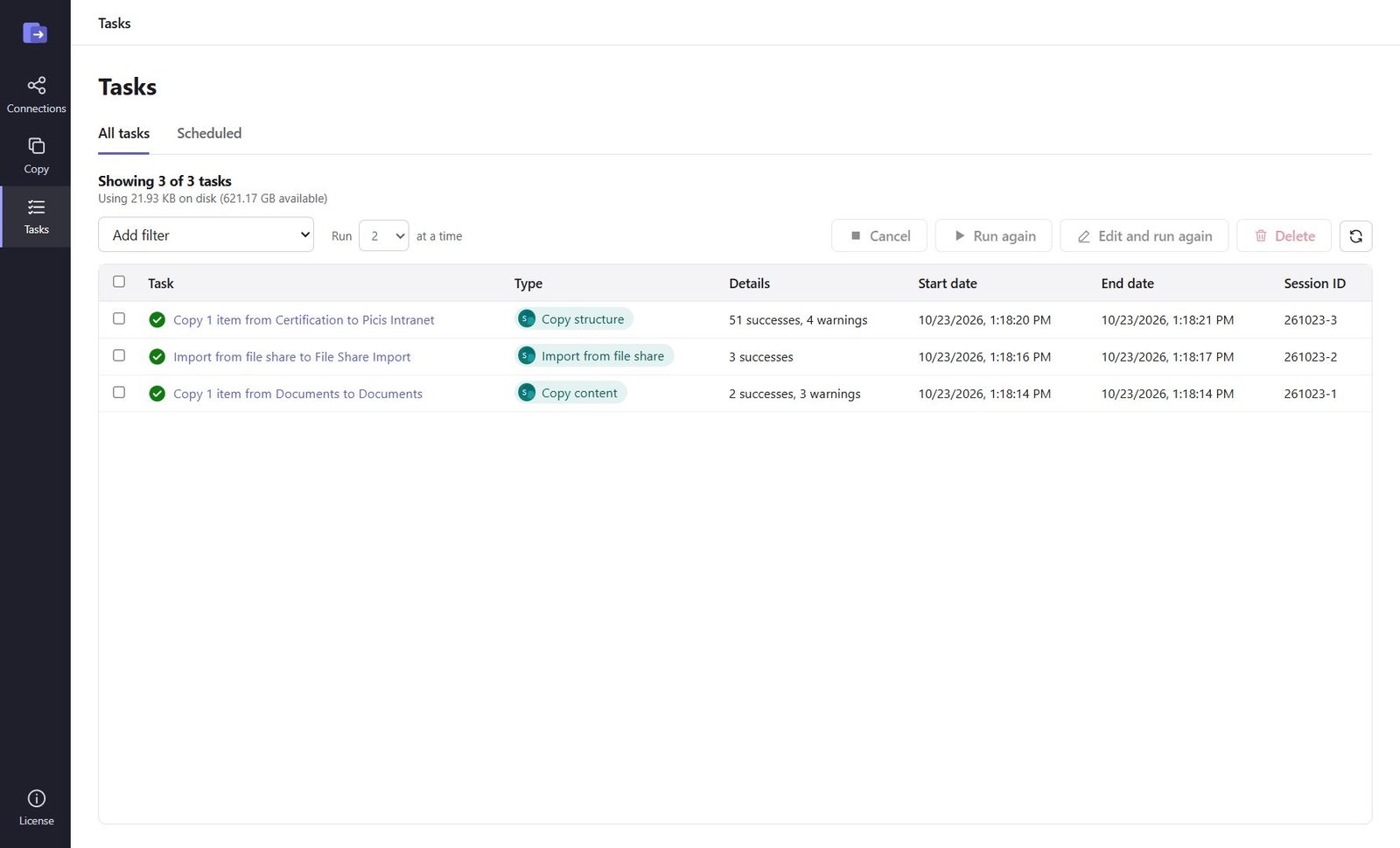
In Tasks, Run … at a time sets how many migrations run in parallel – 1 to 10. Waiting migrations start as soon as a slot is free. 4–6 is a good start for one tenant; Microsoft 365 slows down very busy accounts (the copies wait and retry by themselves).
Step 4: Edit and run again
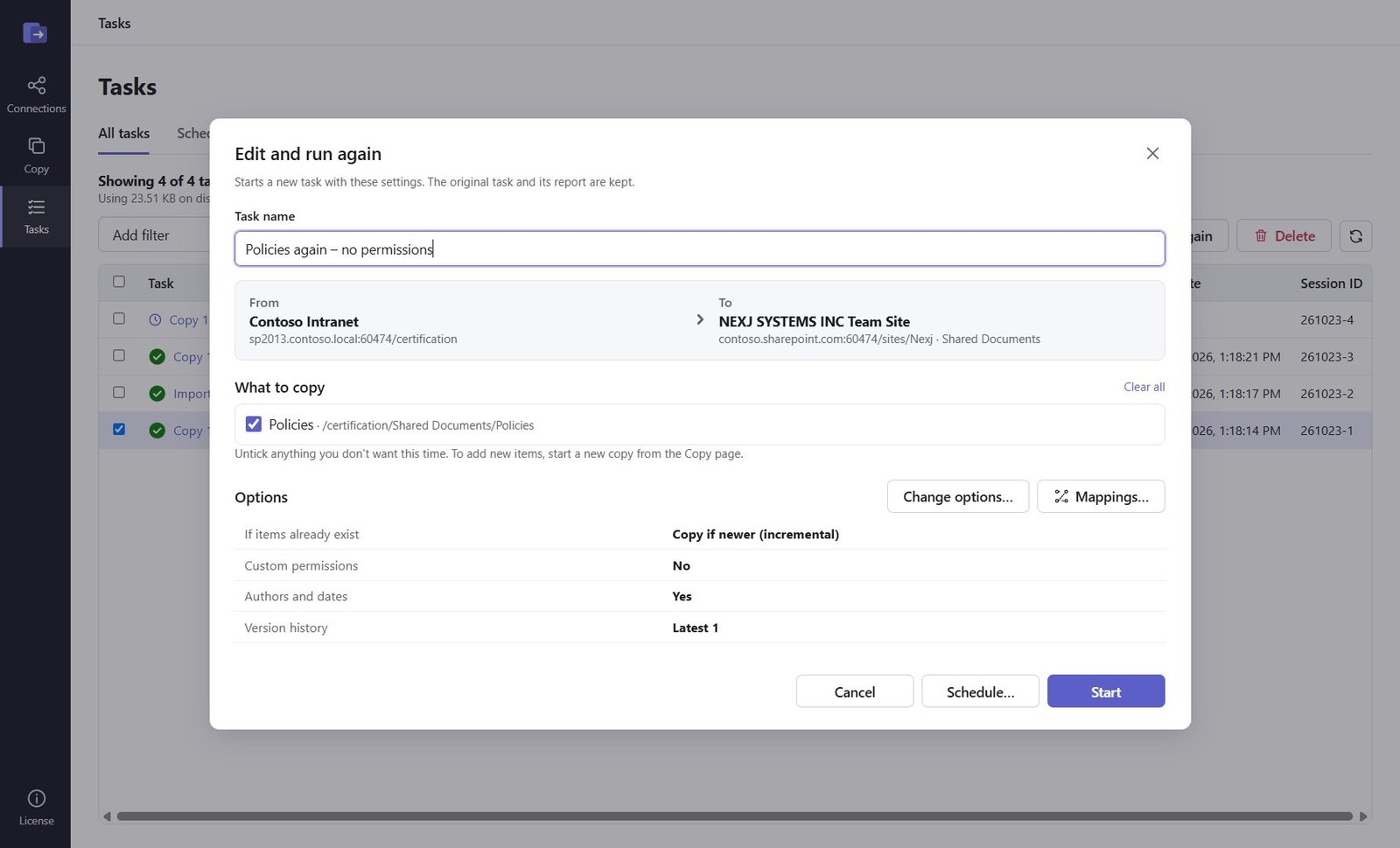
Select a finished task and click Edit and run again to untick items or change options, or Run again to repeat it as it was. With copy if newer only new and changed items are copied – ideal for the final catch-up before cut-over.
Good to know
- The report of each run stays in Tasks; export it to CSV for your records.
Need help?
Search the help center, open a support ticket, or let us run the migration for you.
Related guides
Migrate a SharePoint site from on-premises to SharePoint Online
Whole sites with subsites, lists, libraries, versions, metadata and permissions – SharePoint 2010–2019 / SE to Microsoft 365.
9 steps · 30 minutes to set upRun many SharePoint migrations at once from a CSV file
One row per site, list, folder or file share – checked row by row, each row its own task.
4 steps · 15 minutes