Before you start
- A Windows PC with SharePoint Migrator (or O365 Migration) – free 7-day trial.
- A Windows account that can read the source site (Site Collection Administrator is best).
- A Microsoft 365 account that is Site Collection Administrator on the destination site (or SharePoint admin).
- The destination site collection created in SharePoint Online (or connect to the admin center to see them all).
Step 1: Connect to the on-premises farm
Open Connections → Create new connection. Enter the address of the site (or the web application root), choose Windows – user name & password (NTLM) and type DOMAIN\user and the password – or Windows – current user if you are signed in to Windows with the right account. Click Connect.
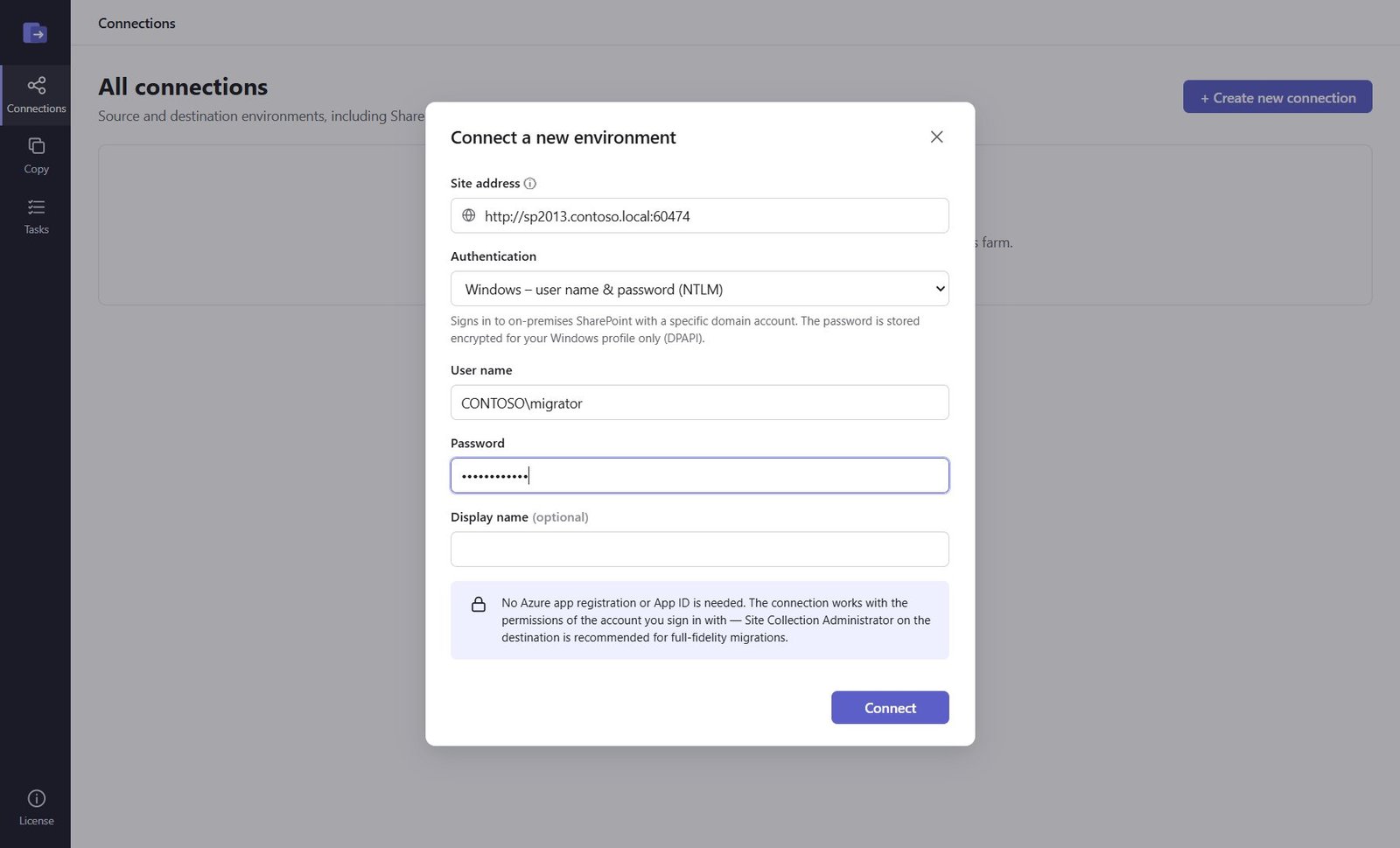
Step 2: Connect to SharePoint Online
Create a second connection with the destination site address, for example https://contoso.sharepoint.com/sites/HR (or the admin center https://contoso-admin.sharepoint.com to browse every site). Choose Microsoft 365 – browser sign-in: Microsoft's own sign-in page opens, with MFA and Conditional Access as usual. No App ID is needed. Both connections now show Connected and whether you are a site admin.
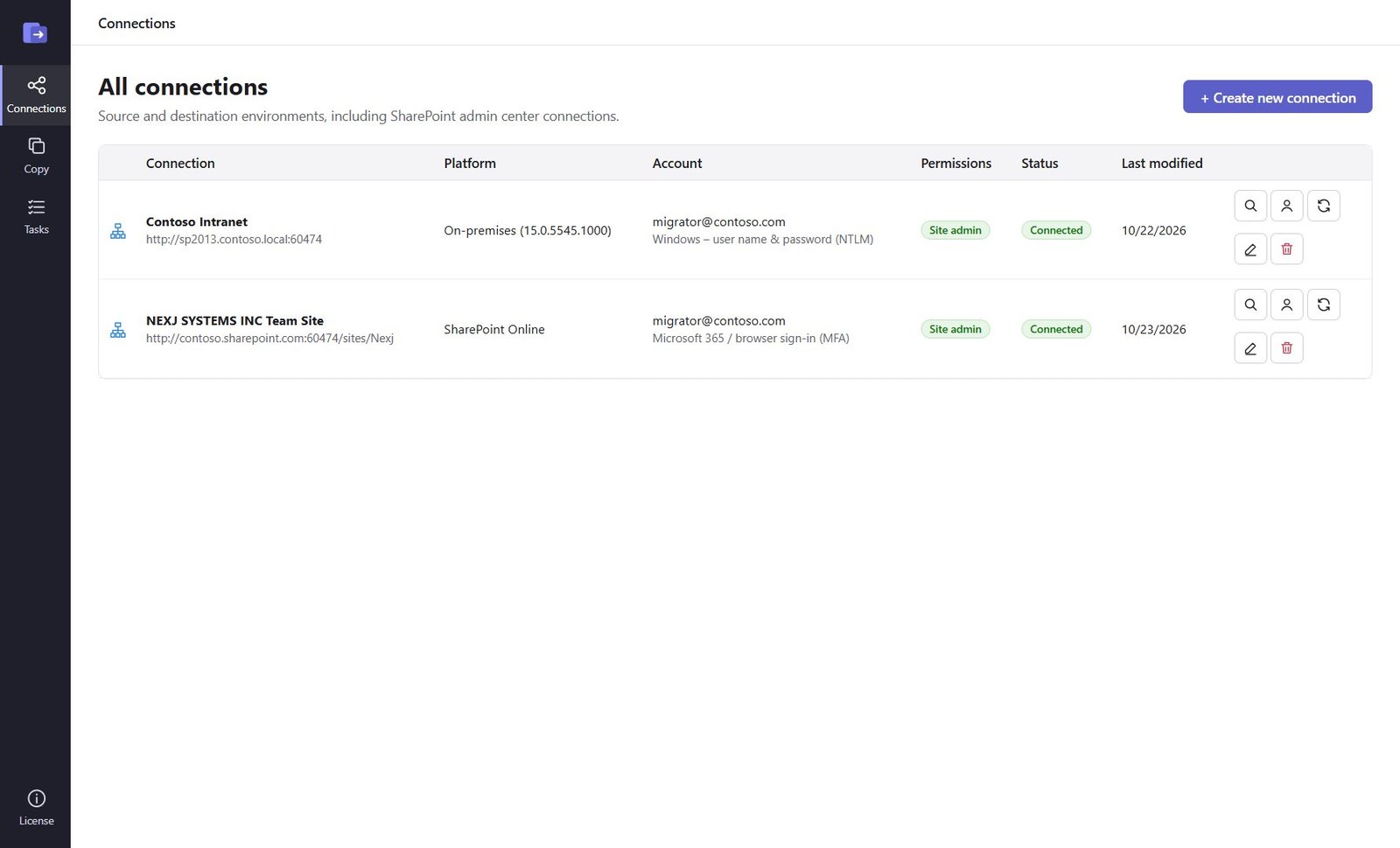
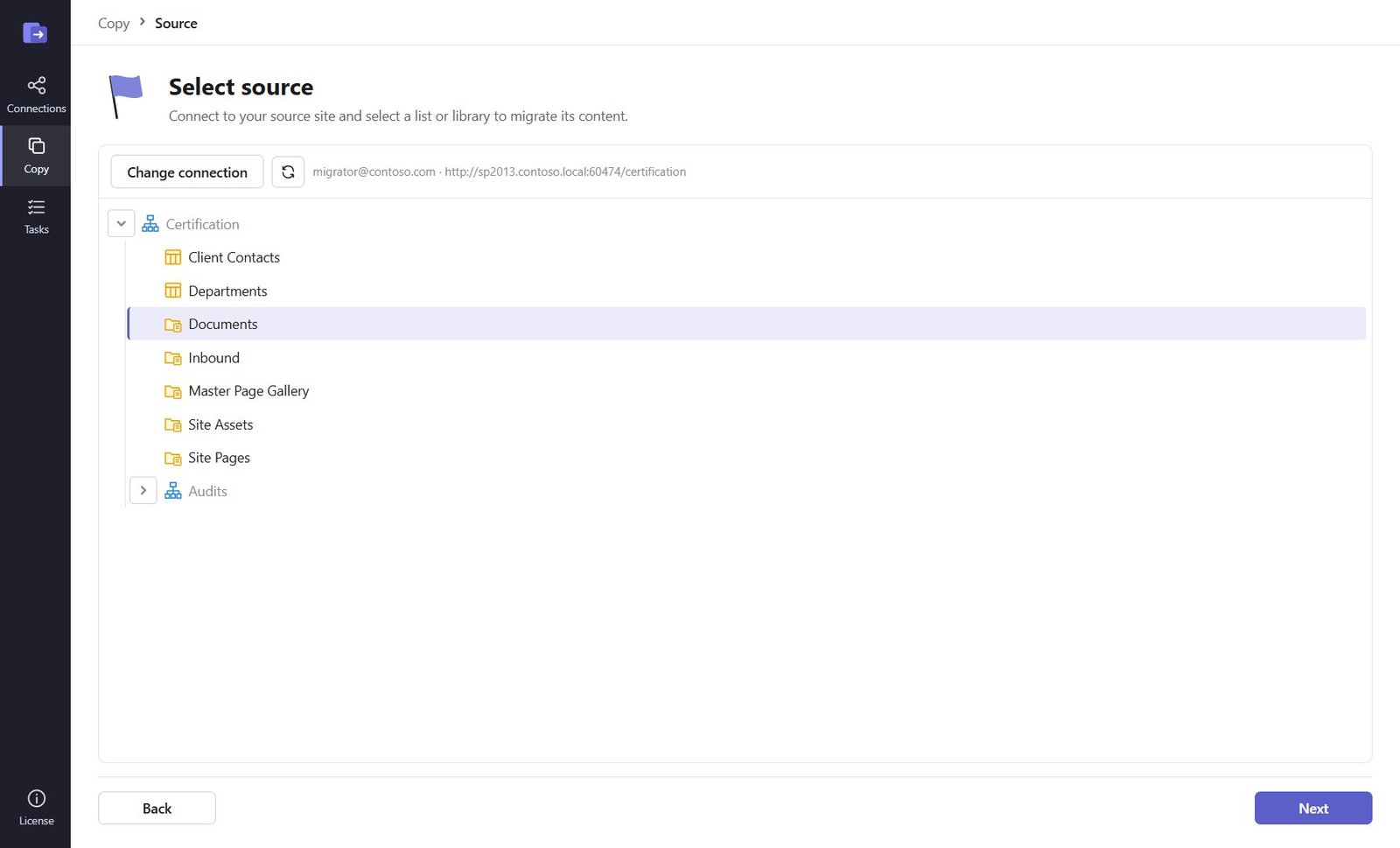
Step 3: Start "Copy structure and content" and pick the source site
Open Copy → Copy structure and content. Pick the source connection, then click the site (or subsite) to migrate in the tree and click Next.
Step 4: Pick the destination site
Pick the SharePoint Online connection and click the destination site. The source site can become a new subsite of it, or be merged into it (set in Options). Click Next.
Step 5: Choose what to copy
On the left choose the kind of object – Sites, Lists and libraries, Content types, Site columns, SharePoint groups, Permission levels, Managed metadata – and tick what to copy. Ticking the site under Sites copies the whole site: its lists and libraries with content, and (option) its subsites.
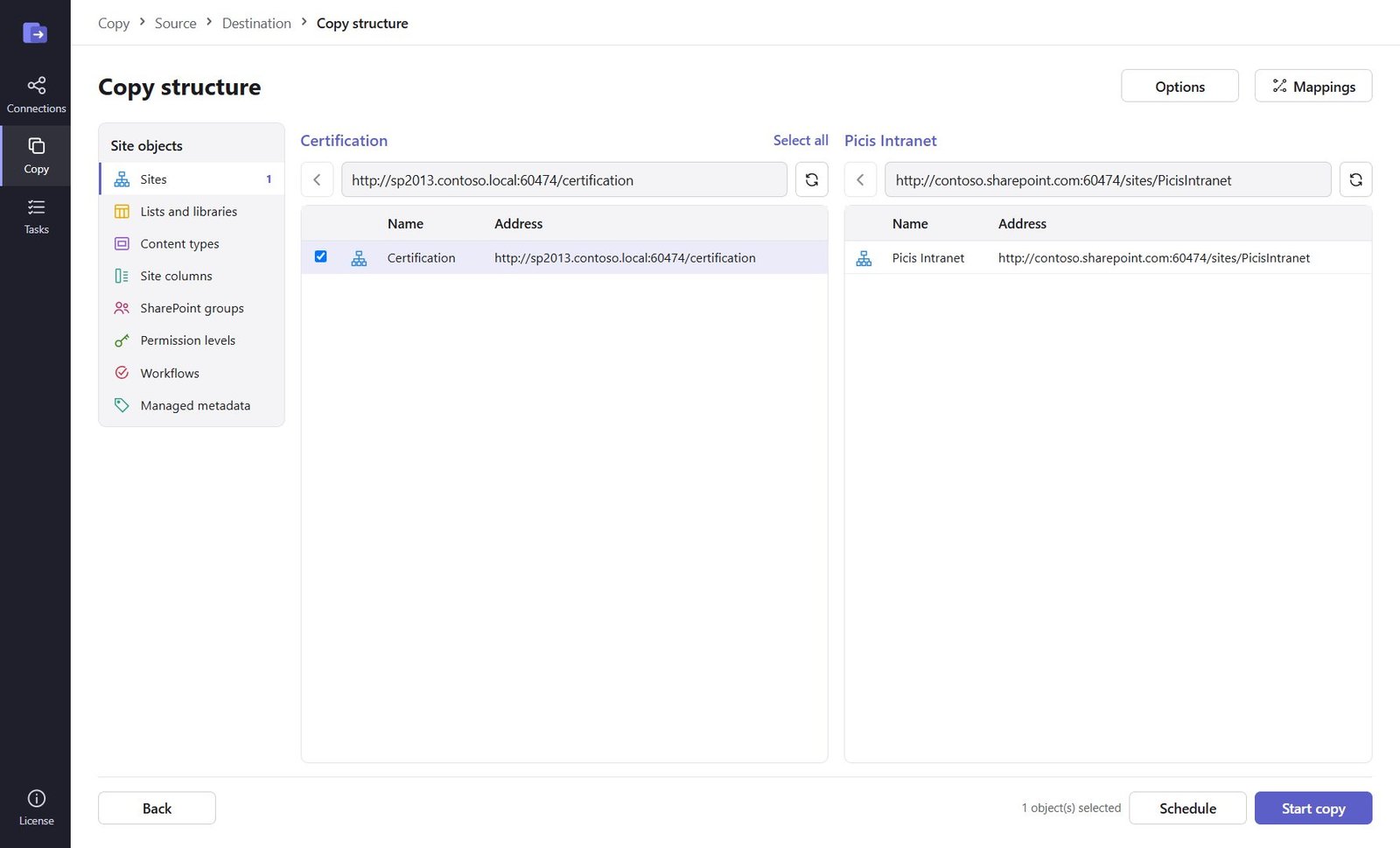
Step 6: Set the options
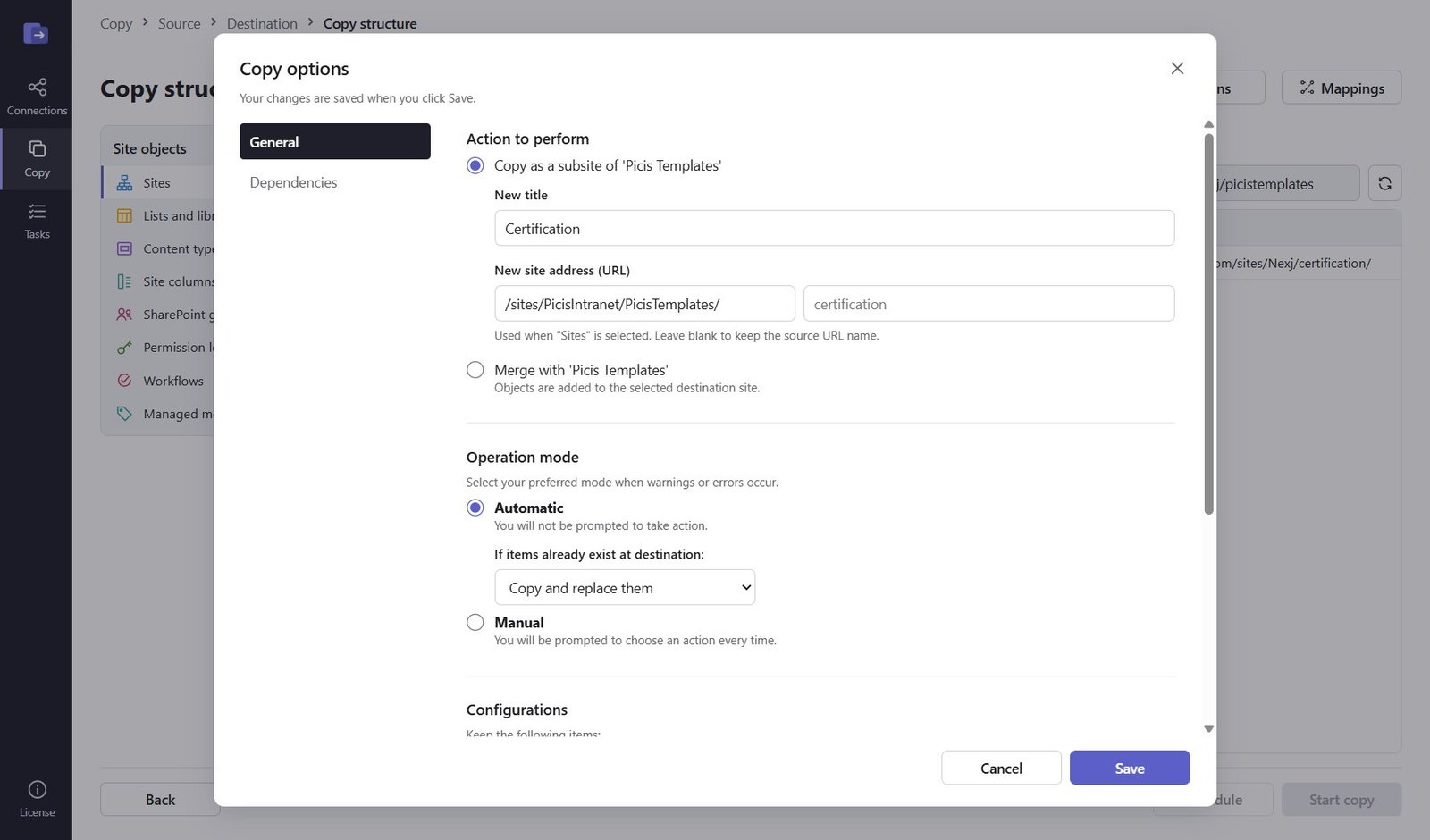
Click Options: copy as a subsite (with a new URL and title) or merge; what to do when items already exist (copy if newer is best for repeated runs); and what to keep – permissions, version history (all or the latest N), authors and dates, views, navigation, subsites, workflows.
Step 7: Map users that changed
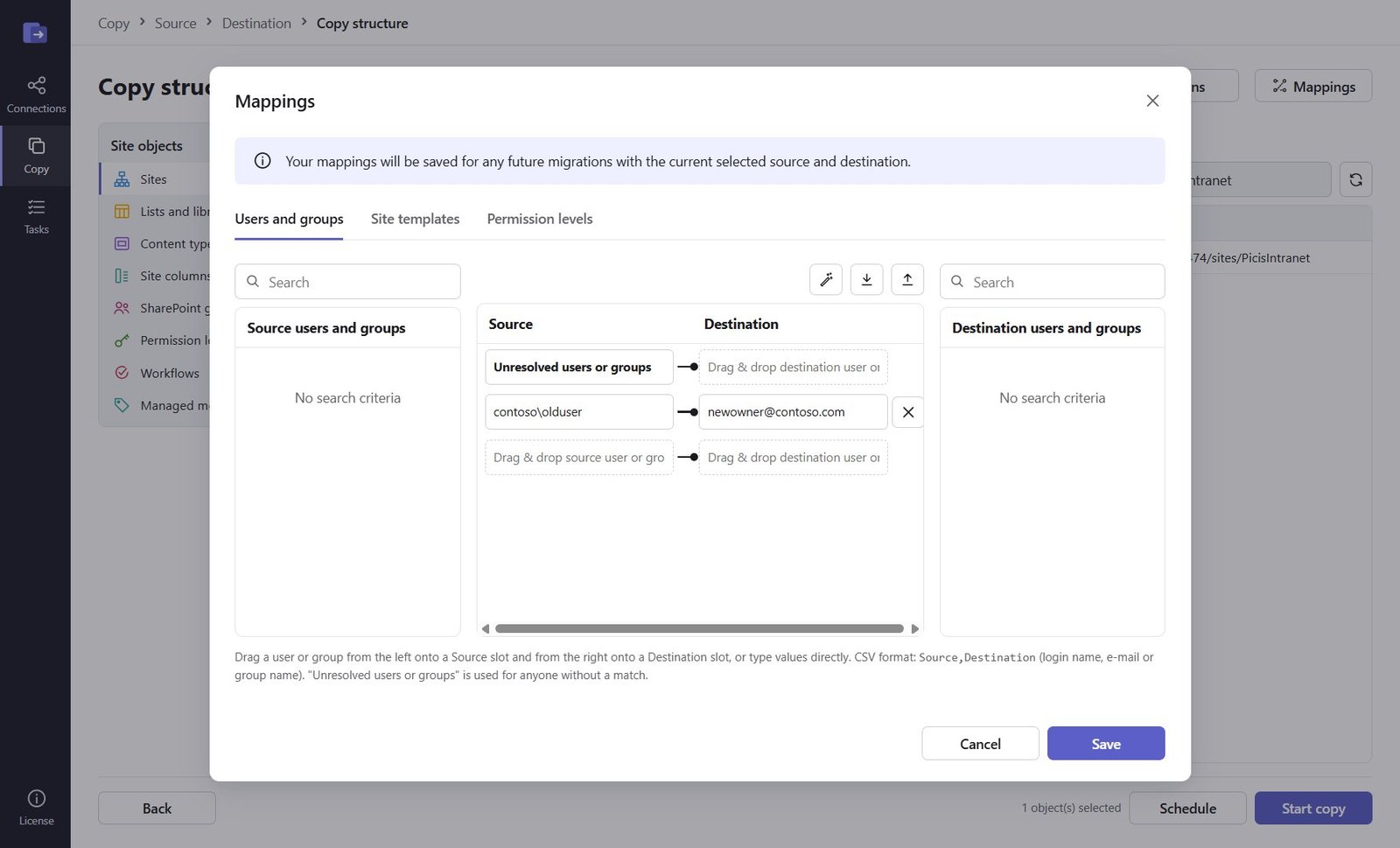
Click Mappings. Users with the same e-mail address are matched automatically. Map accounts that changed (for example contoso\olduser → newowner@contoso.com) by dragging or typing, or import a Source,Destination CSV. Set an Unresolved users account for people who left. Mappings are saved for the next migrations.
Step 8: Start (or schedule) and follow the report
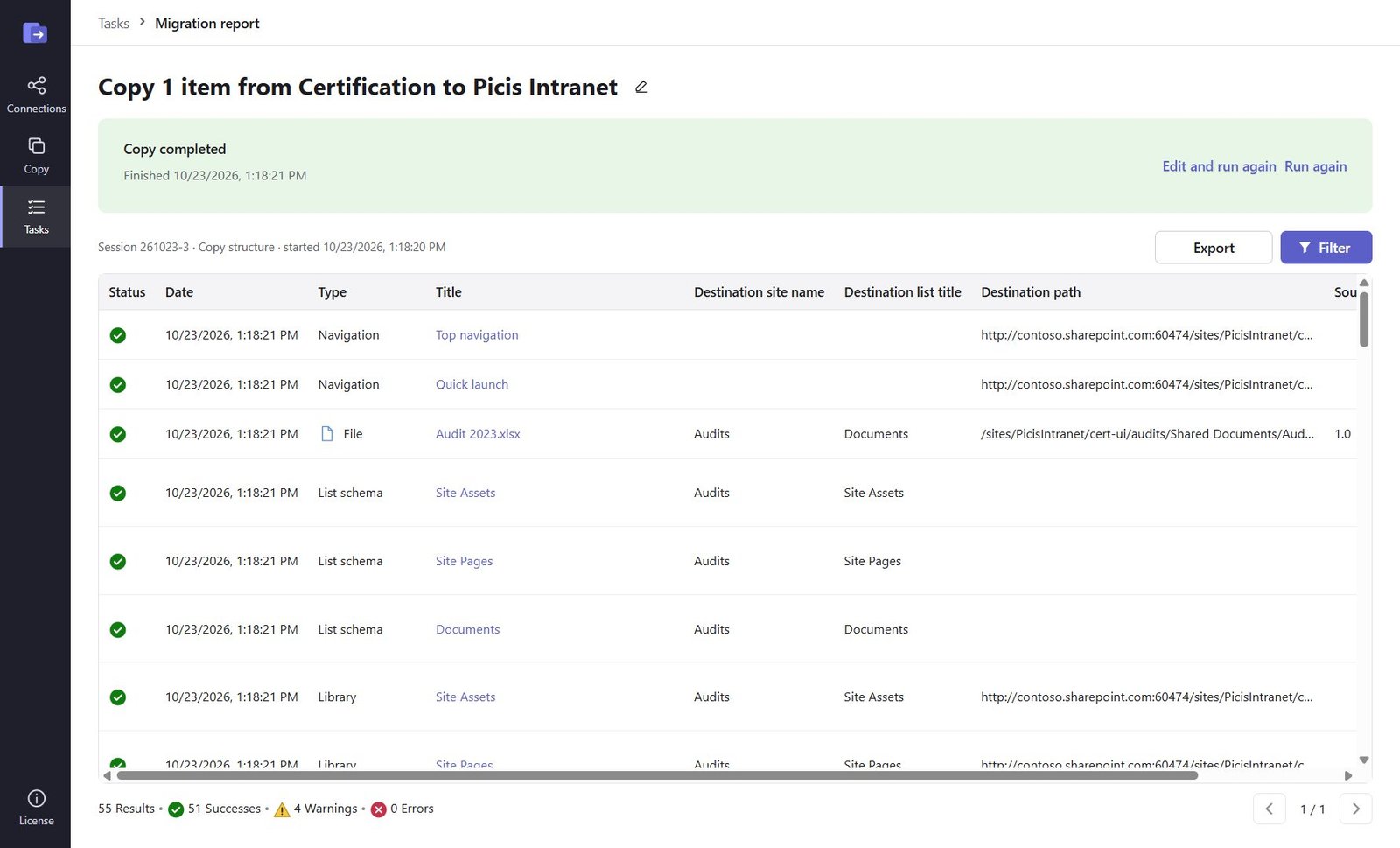
Click Start copy – or Schedule for a start and end date and time. The report fills in live: every site, list, file and item with its status. Export it to CSV for your records; warnings and errors explain what to do.
Step 9: Run a catch-up before cut-over
Users can keep working in the old site. Before switching over, select the task in Tasks and click Run again: with copy if newer only new and changed items are copied, so the final run is short. Then make the old site read-only.
Good to know
- Copy a test site first and check the report – it shows exactly what will need attention (long paths, blocked file types, missing users).
- Permissions are recreated directly: nobody receives sharing invitations or notification e-mails during the migration.
- Large sites: split them into several tasks (one per library or subsite) and set Run … at a time in Tasks to run up to 10 in parallel.
Need help?
Search the help center, open a support ticket, or let us run the migration for you.
Related guides
Copy libraries, folders and files between SharePoint sites
Selected folders, files and list items – with versions, metadata and permissions – into an existing library.
5 steps · 10 minutesRun many SharePoint migrations at once from a CSV file
One row per site, list, folder or file share – checked row by row, each row its own task.
4 steps · 15 minutesSchedule migrations, run them in parallel and catch up incrementally
Start and end date and time, the Scheduled tab, up to 10 at a time, edit and run again.
4 steps · 5 minutes