Before you start
- Connections to the source and destination sites (see the site migration guide, steps 1–2).
- The destination list or library already exists.
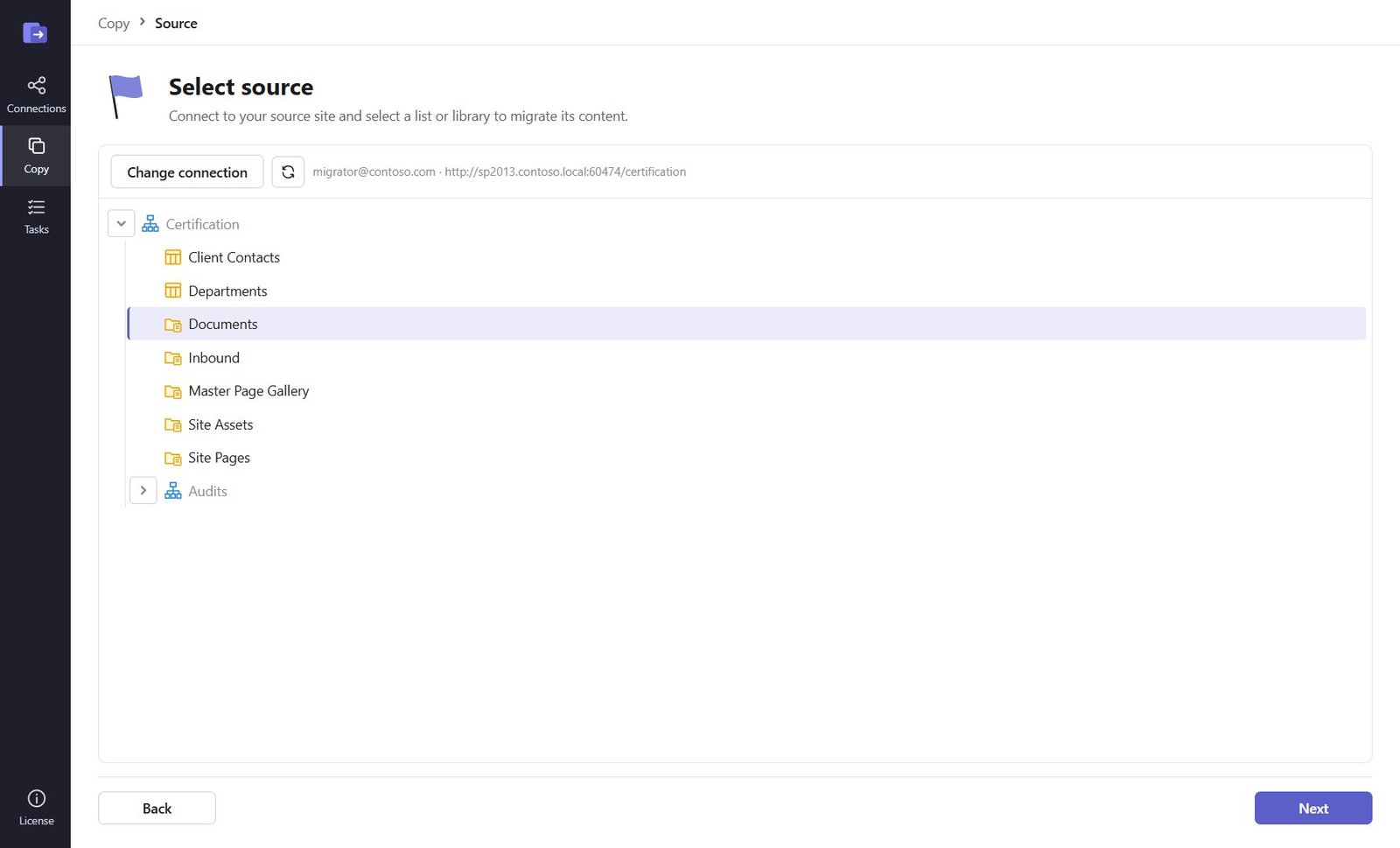
Step 1: Start "Copy content only" and pick the source library
Open Copy → Copy content only. Pick the source connection and click the list or library in the tree. Click Next.
Step 2: Pick the destination library
Pick the destination connection and click the library (or list) to copy into. Click Next.
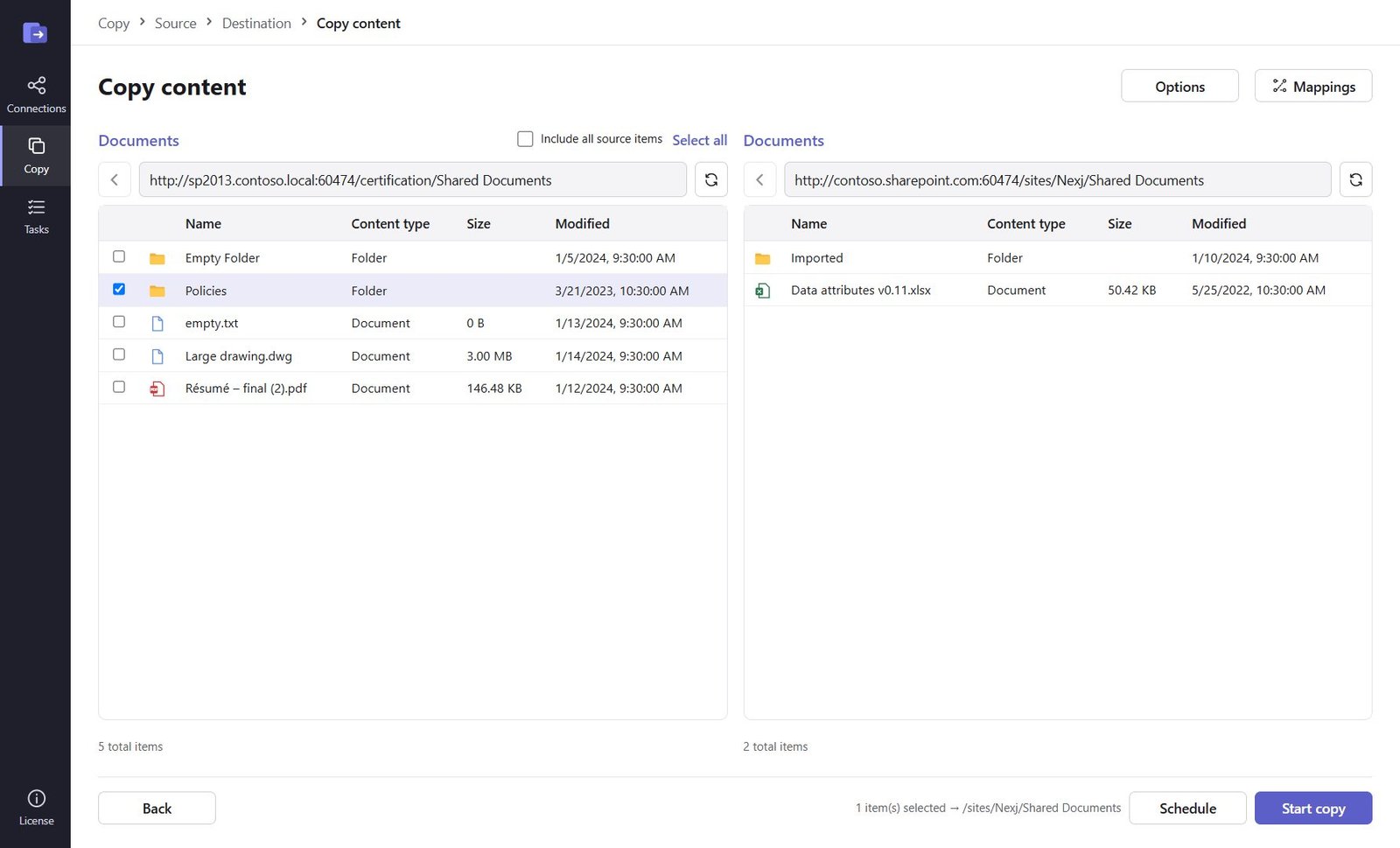
Step 3: Select folders and files
The source is on the left, the destination on the right. Tick the folders and files to copy – or Include all source items. On the right, double-click into the folder that should receive them.
Step 4: Options and mappings
Options: conflict rule (copy if newer, replace, skip, keep both), version history, authors and dates, permissions. Mappings: users whose accounts changed.
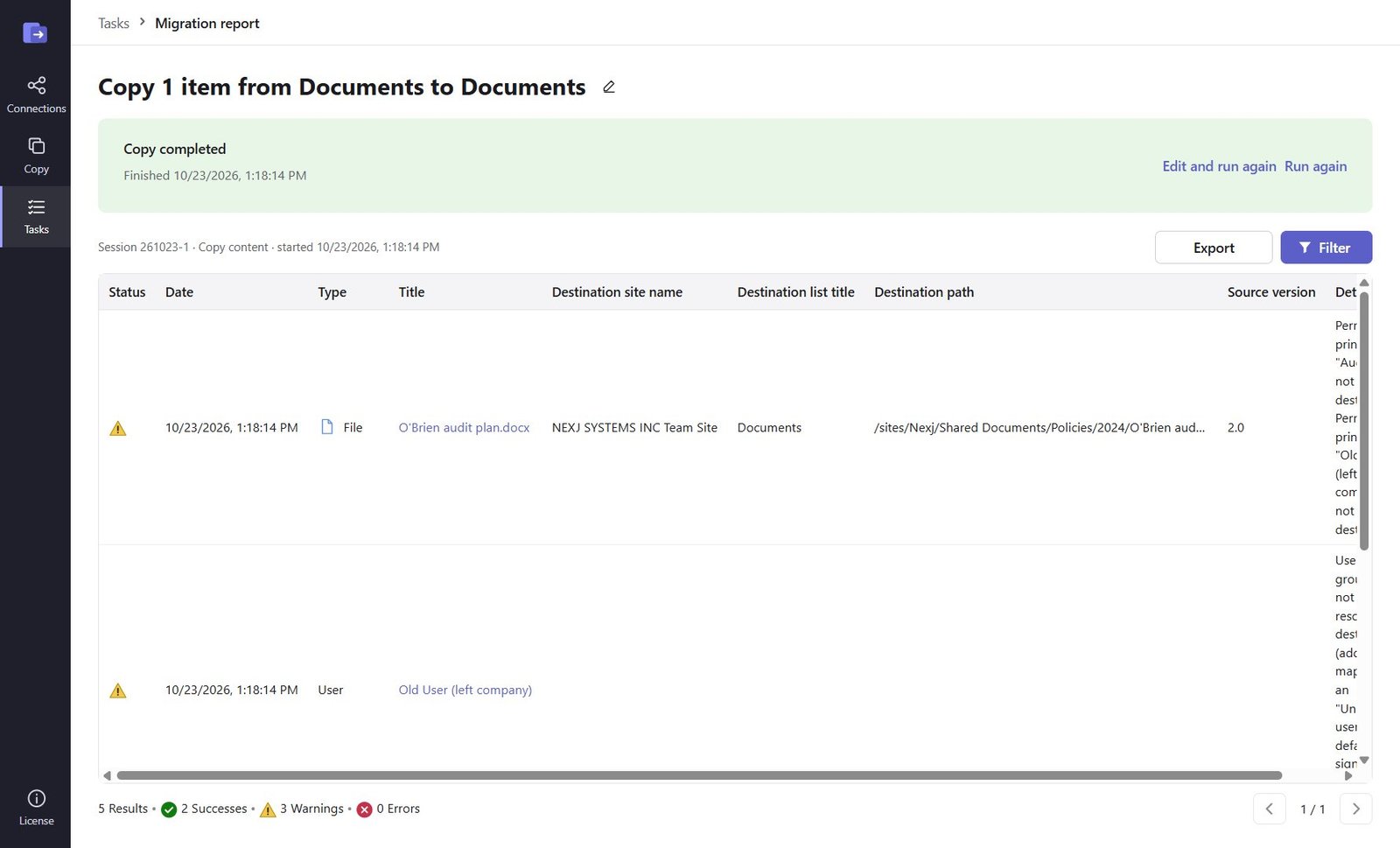
Step 5: Start and check the report
Click Start copy (or Schedule). Each folder, file and version is listed in the report with its status.
Good to know
- Run the same task again before cut-over: only new and changed files are copied.
- Names SharePoint doesn't allow, paths longer than 400 characters and files the account can't read are reported with the reason – the rest of the copy carries on.
Need help?
Search the help center, open a support ticket, or let us run the migration for you.
Related guides
Migrate a SharePoint site from on-premises to SharePoint Online
Whole sites with subsites, lists, libraries, versions, metadata and permissions – SharePoint 2010–2019 / SE to Microsoft 365.
9 steps · 30 minutes to set upSchedule migrations, run them in parallel and catch up incrementally
Start and end date and time, the Scheduled tab, up to 10 at a time, edit and run again.
4 steps · 5 minutes