Before you start
- A connection to the destination site or OneDrive (Microsoft 365 sign-in or App ID).
- Read access to the share from the PC running the app (your Windows account).
Step 1: Start "Import from file share"
Open Copy → tab Import external content → Import from file share.
Step 2: Pick the destination library
Pick the destination connection and click the document library (for OneDrive: connect to https://contoso-my.sharepoint.com/personal/… and pick Documents). Click Next.
Step 3: Open the share and select folders
Type the path – \\fileserver\Finance or D:\Data – and press Enter, or click Browse…. Tick the folders and files (or Select all). On the right, double-click into a destination folder if you don't want them in the library root.
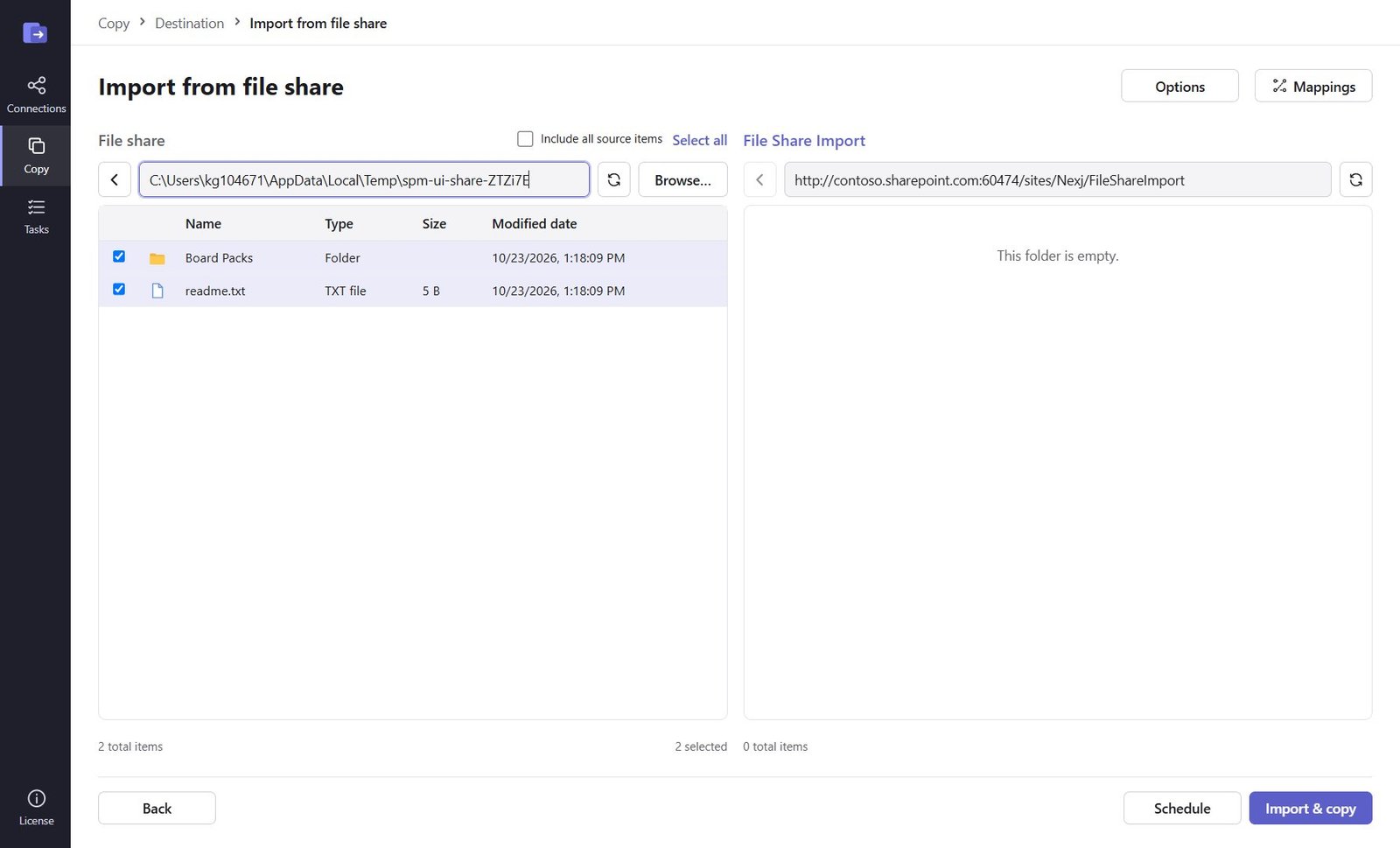
Step 4: Options
Click Options to set what happens when a file already exists – copy if newer makes repeated runs incremental. In Mappings you can set who appears as the author (by default the signed-in account).
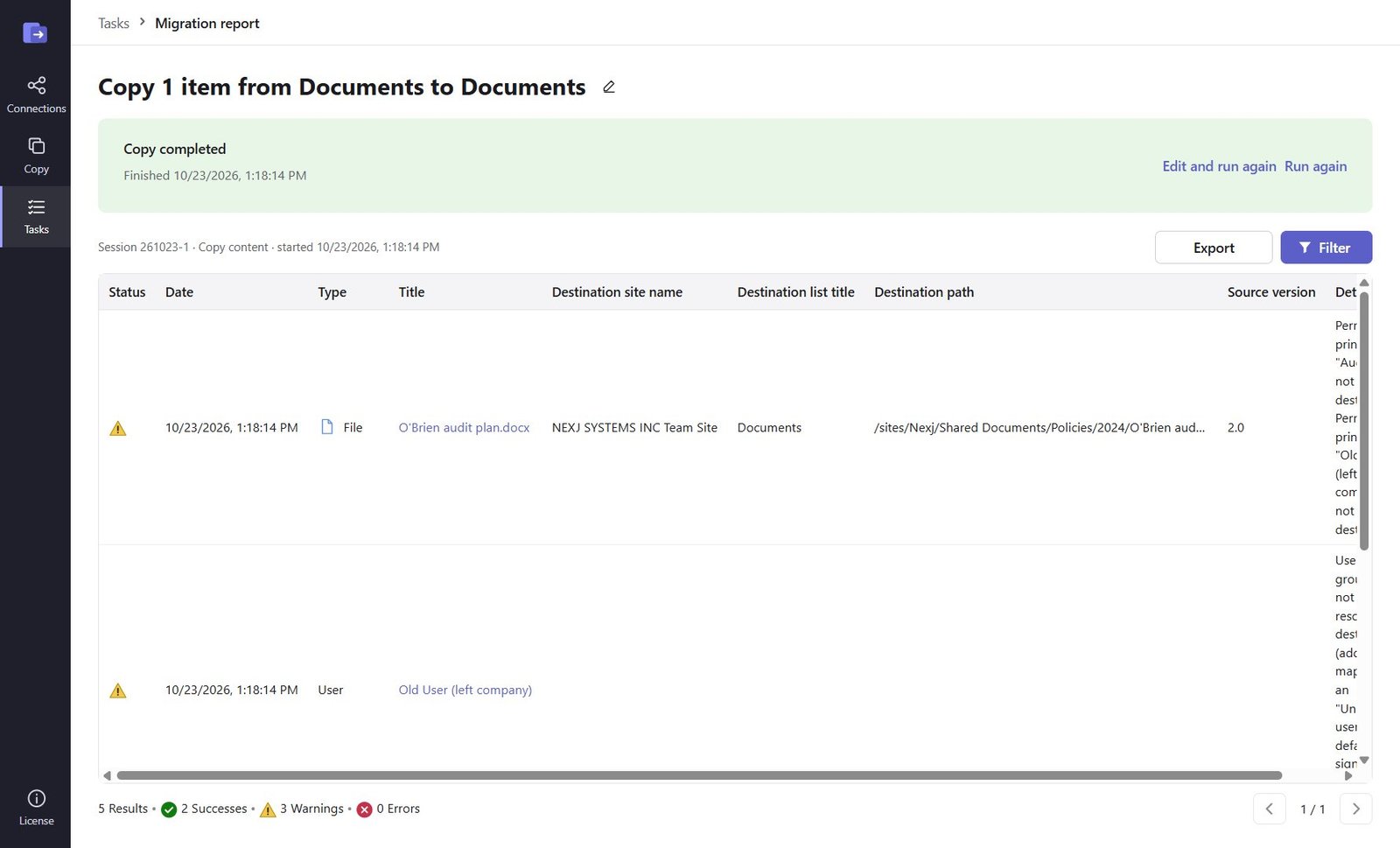
Step 5: Import and check the report
Click Import & copy. Created and modified dates are kept. Names SharePoint doesn't allow (" * : < > ? / \ |), Office lock files, desktop.ini/Thumbs.db and paths over 400 characters are skipped or reported with the reason.
Good to know
- Run the import again just before users switch: only new and changed files are uploaded.
- Many shares at once? Use Bulk copy from CSV with Type
FileShare.
Need help?
Search the help center, open a support ticket, or let us run the migration for you.
Related guides
Run many SharePoint migrations at once from a CSV file
One row per site, list, folder or file share – checked row by row, each row its own task.
4 steps · 15 minutesSchedule migrations, run them in parallel and catch up incrementally
Start and end date and time, the Scheduled tab, up to 10 at a time, edit and run again.
4 steps · 5 minutes