Before you start
- A Google Workspace administrator (for a service account) – or a Google account to sign in with.
- A SharePoint connection to the destination site or OneDrive.
Step 1: Prepare Google (once)
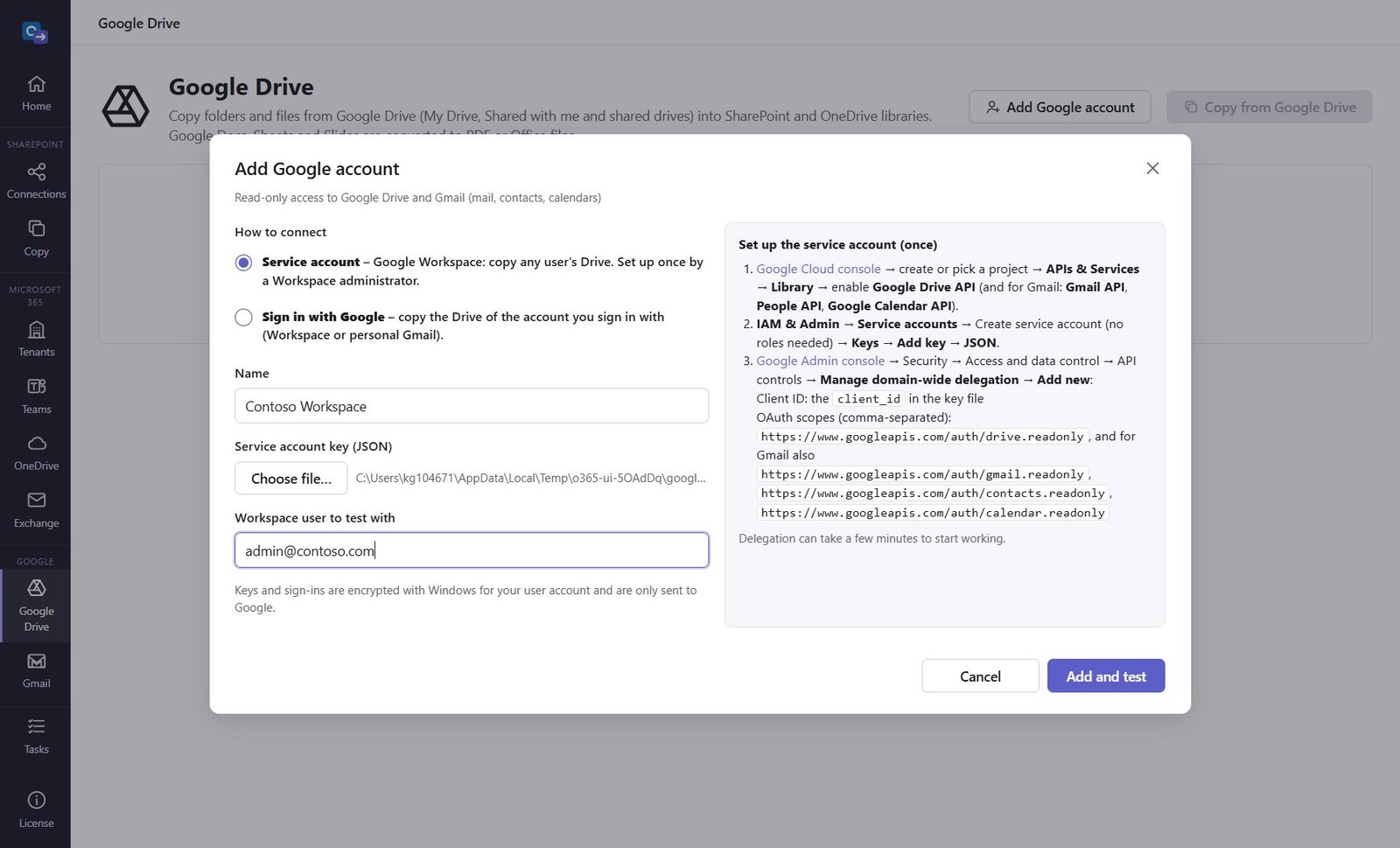
In Google Cloud console enable the Google Drive API, create a service account and download a JSON key. In the Google Admin console → Security → API controls → Domain-wide delegation → Add new: the key's client_id and the scope https://www.googleapis.com/auth/drive.readonly.
Step 2: Add the Google account
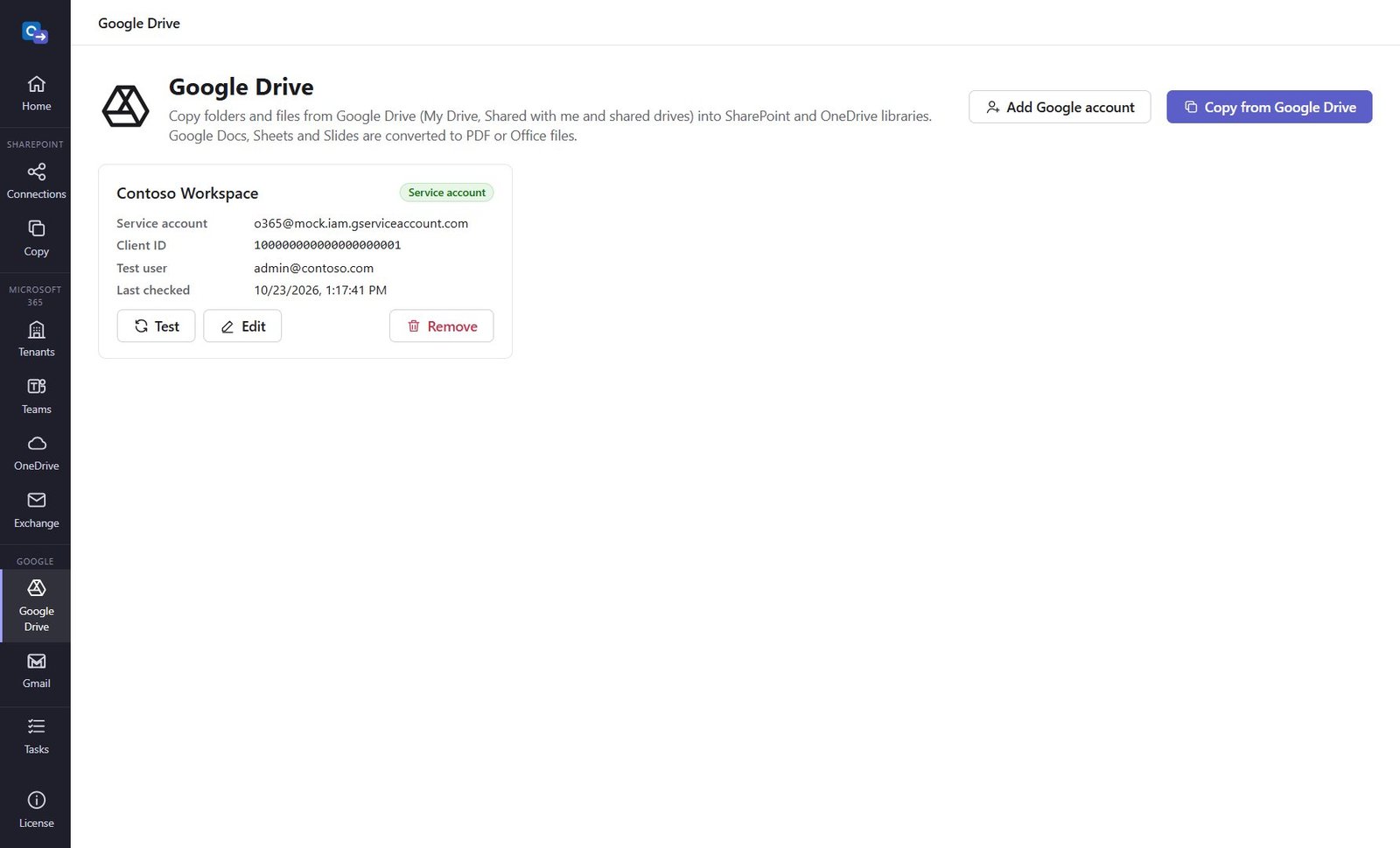
Google Drive → Add Google account → Service account: choose the key file, enter a Workspace user to test with, Add and test. (Or Sign in with Google with your own "Desktop app" OAuth client – that copies one account's Drive.)
Step 3: Start the import and pick the destination
Click Copy from Google Drive (or Copy → Import external content → Import from Google Drive). Pick the destination connection and library.
Step 4: Choose the user and folders
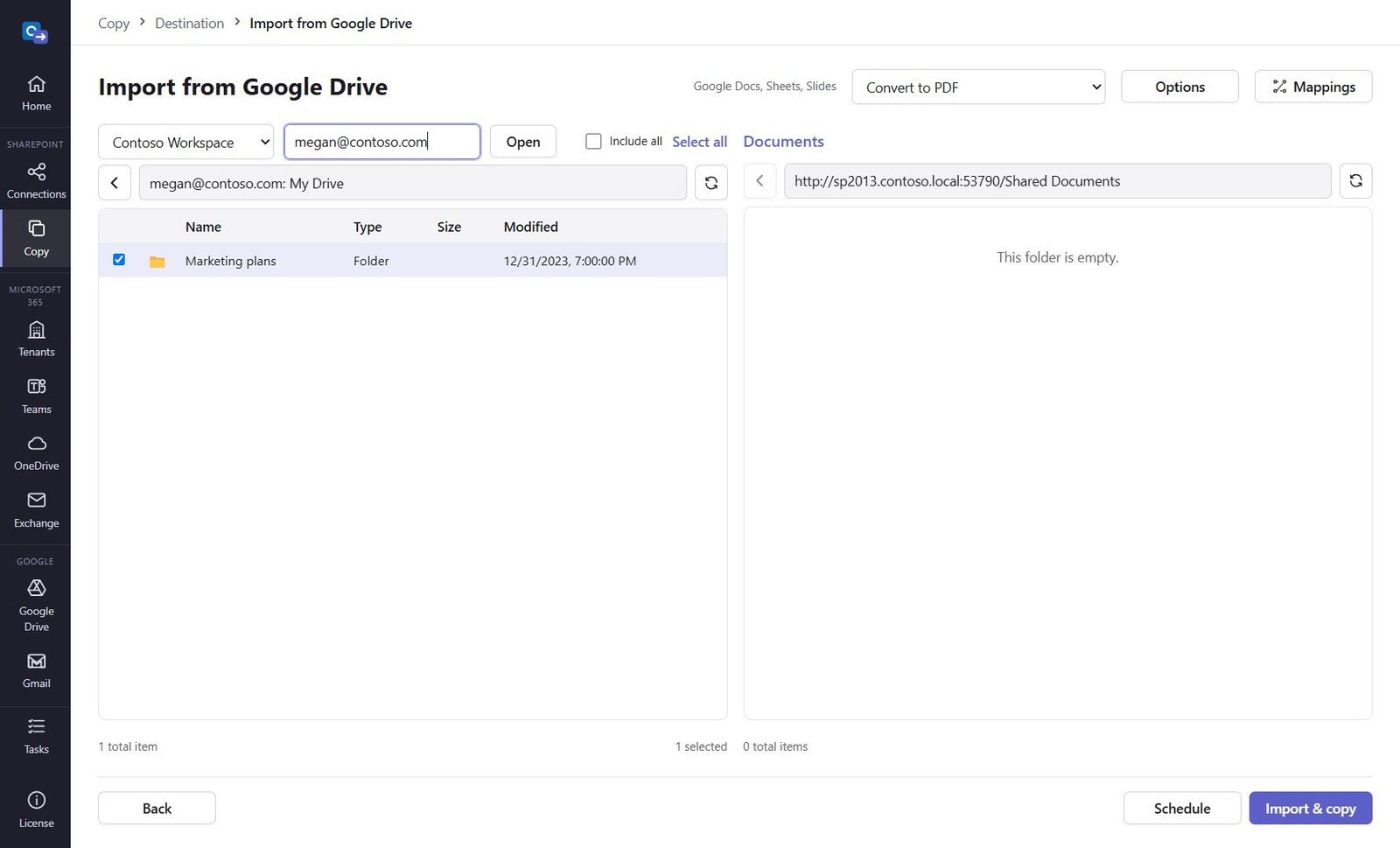
For a service account type the user whose Drive to copy and click Open. Double-click My Drive, Shared with me or a shared drive, tick folders and files. Next to Options choose how Google Docs, Sheets, Slides are converted: PDF, Word/Excel/PowerPoint, or skipped.
Step 5: Import and check the report
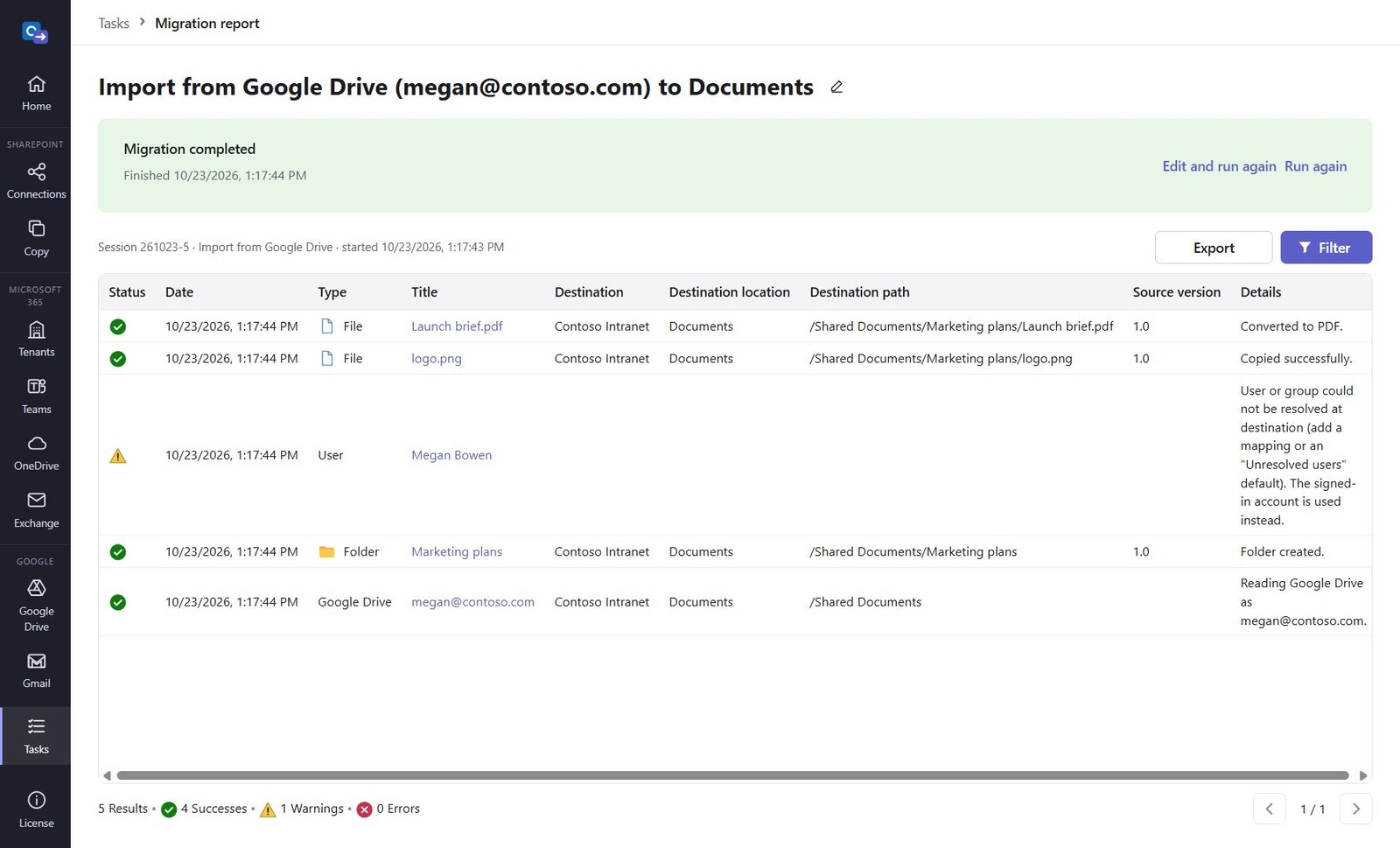
Click Import & copy. Folders, dates and owners are kept (map Google addresses under Mappings); names SharePoint doesn't allow are fixed and reported; Forms and shortcuts are skipped with a reason.
Good to know
- Run it again for a catch-up: only new and changed files are copied.
- Google converts files up to 10 MB; larger Docs are reported so you can download them yourself.
- Many users? Google Drive → Bulk import from CSV: one row per Drive with
SourceGoogleUser, DestinationUrl, SourceFolder, Options.onedrive:jane@fabrikam.comas the destination means that user's OneDrive;shared:Marketing Teamas the source folder means a shared drive. Every row is checked, then each runs as its own task.
Need help?
Search the help center, open a support ticket, or let us run the migration for you.
Related guides
Migrate Gmail to Exchange Online (Microsoft 365)
Every user's Gmail with labels as folders, contacts and calendars – from a CSV of users.
6 steps · 30 minutes (first time)Schedule migrations, run them in parallel and catch up incrementally
Start and end date and time, the Scheduled tab, up to 10 at a time, edit and run again.
4 steps · 5 minutes