Before you start
- A Google Workspace service account with domain-wide delegation (see the Google Drive guide, step 1).
- The destination tenant on the Tenants page with
User.Read.All,Mail.ReadWrite,Contacts.ReadWrite,Calendars.ReadWrite. - Destination mailboxes licensed for Exchange Online.
Step 1: Allow Gmail, contacts and calendars
In Google Cloud enable the Gmail API, People API and Google Calendar API. In the Admin console's domain-wide delegation entry set the scopes:https://www.googleapis.com/auth/drive.readonly, https://www.googleapis.com/auth/gmail.readonly, https://www.googleapis.com/auth/contacts.readonly, https://www.googleapis.com/auth/calendar.readonly
Step 2: Get the list of users
Google Admin console → Directory → Users → Download users (CSV). Make a CSV with SourceGmail,DestinationMailbox – or only the Gmail column and use Fill destinations. For hundreds of users, split it into several files to run in parallel.
Step 3: Import the list and check
Open Gmail, pick the Google account and the destination tenant, Import CSV, then Check – each Gmail account and Exchange mailbox is confirmed.
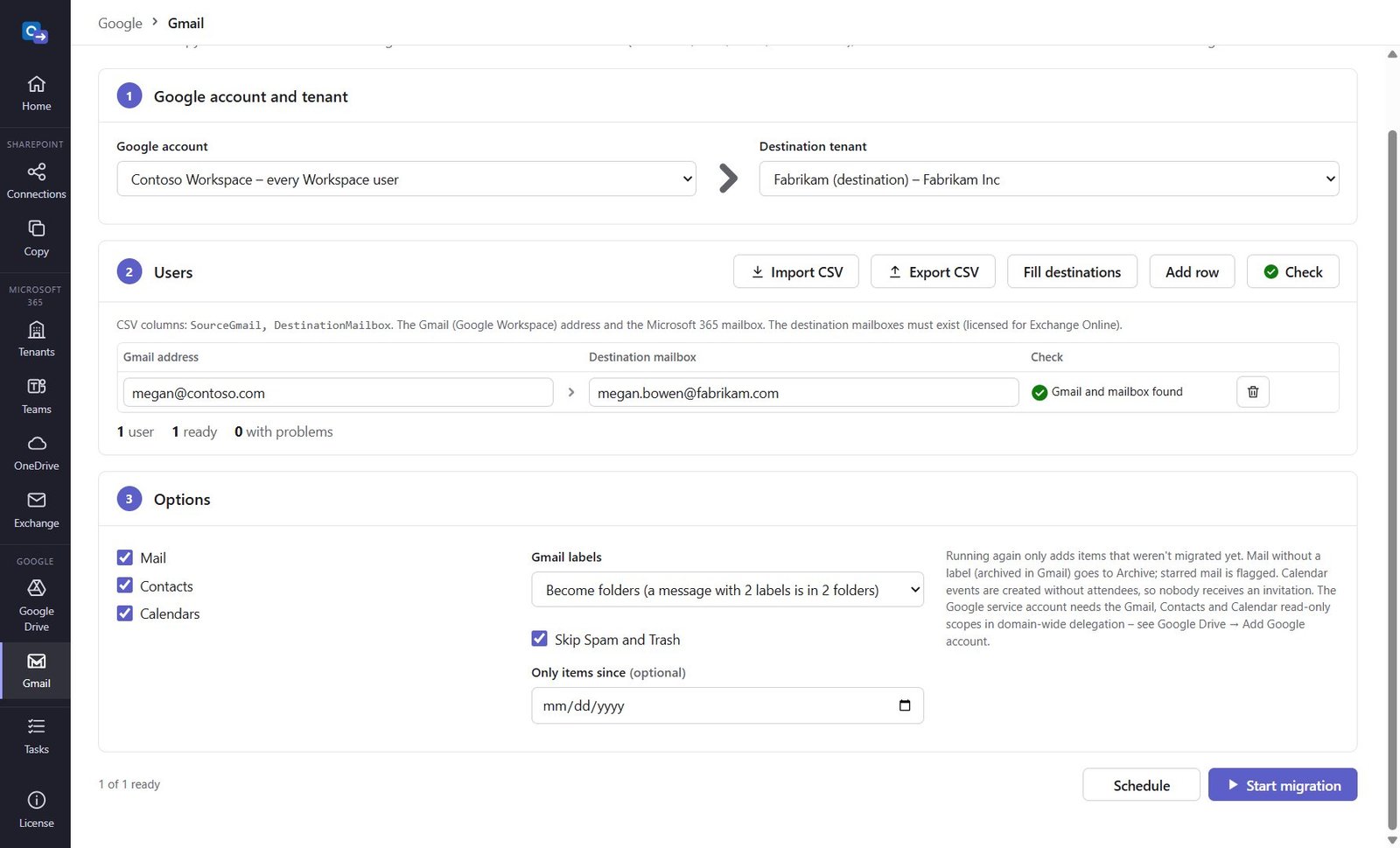
Step 4: Choose options
Mail, Contacts, Calendars. Gmail labels become folders (a message with two labels is in both) or categories (one copy in Inbox, Sent or Archive). Skip Spam and Trash; only items since a date.
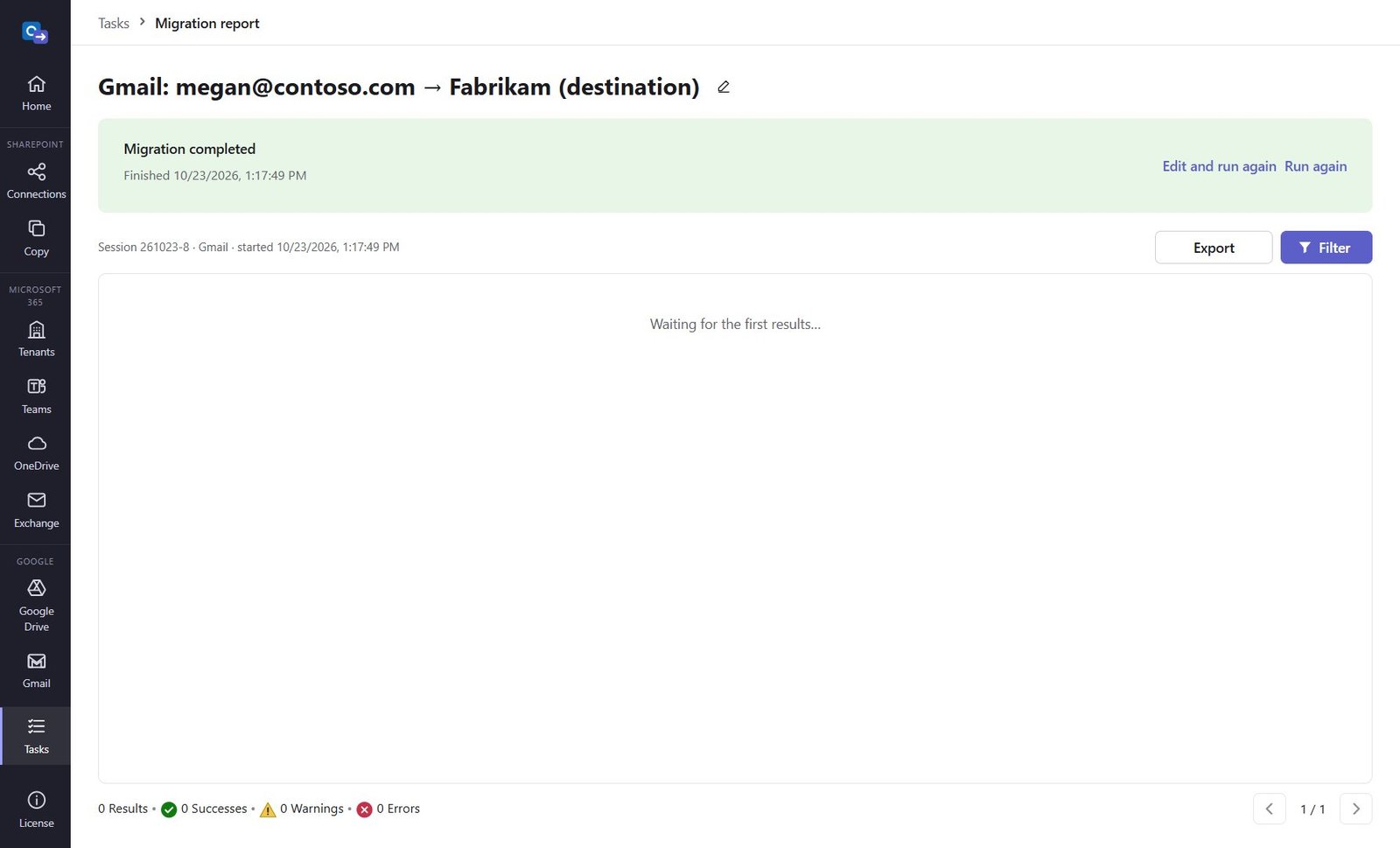
Step 5: Start and check the report
Click Start migration or Schedule. Unread stays unread, starred becomes flagged, attachments and inline images come across; events are created without attendees so nobody is invited.
Step 6: Switch MX, then catch up
After everyone is migrated, point the MX records to Microsoft 365 and run the same lists again: only new messages are copied (nothing is downloaded twice).
Good to know
- A "Sign in with Google" account can only migrate its own mailbox – use a service account for everyone.
- Not migrated: Google Chat, Tasks and calendars you only subscribe to.
Need help?
Search the help center, open a support ticket, or let us run the migration for you.
Related guides
Migrate Google Drive to SharePoint Online and OneDrive
My Drive, Shared with me and shared drives – Google Docs, Sheets and Slides as PDF or Office files.
5 steps · 20 minutes (first time)Connect the source and destination Microsoft 365 tenants
The App ID (Microsoft Graph application permissions) that Teams, OneDrive, Exchange and Gmail migrations use.
4 steps · 15 minutes per tenant (admin)Schedule migrations, run them in parallel and catch up incrementally
Start and end date and time, the Scheduled tab, up to 10 at a time, edit and run again.
4 steps · 5 minutes