Before you start
- Both tenants on the Tenants page.
- Destination users licensed for OneDrive, with their OneDrive created (opened once or pre-provisioned with Request-SPOPersonalSite).
Step 1: List the users
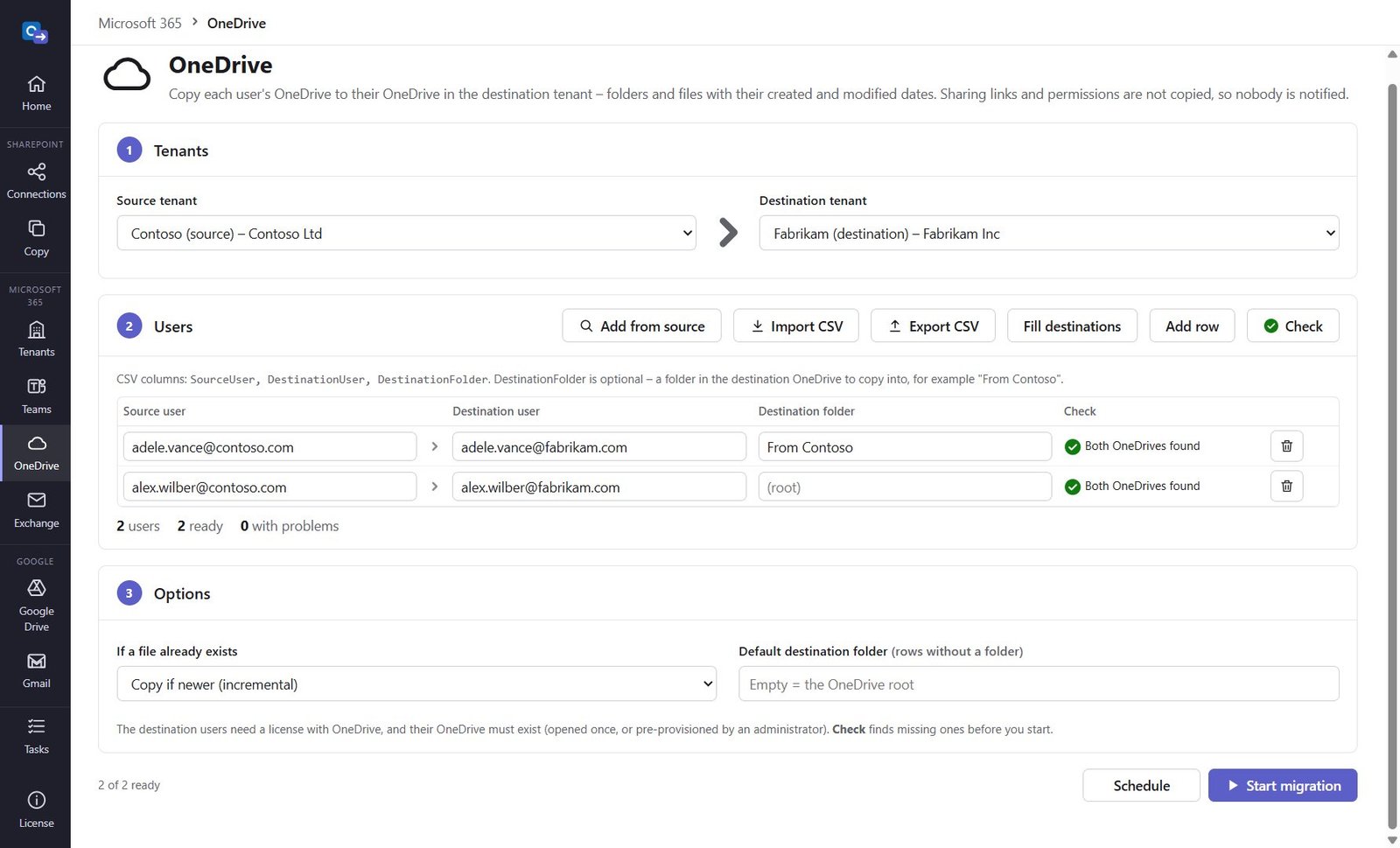
Open OneDrive, pick the tenants, then Import CSV (SourceUser,DestinationUser,DestinationFolder) or Add from source. Fill destinations sets the same name at the new domain. DestinationFolder is optional, e.g. From Contoso.
Step 2: Check
Click Check: both users and both OneDrives are found, missing ones are explained.
Step 3: Start and check the report
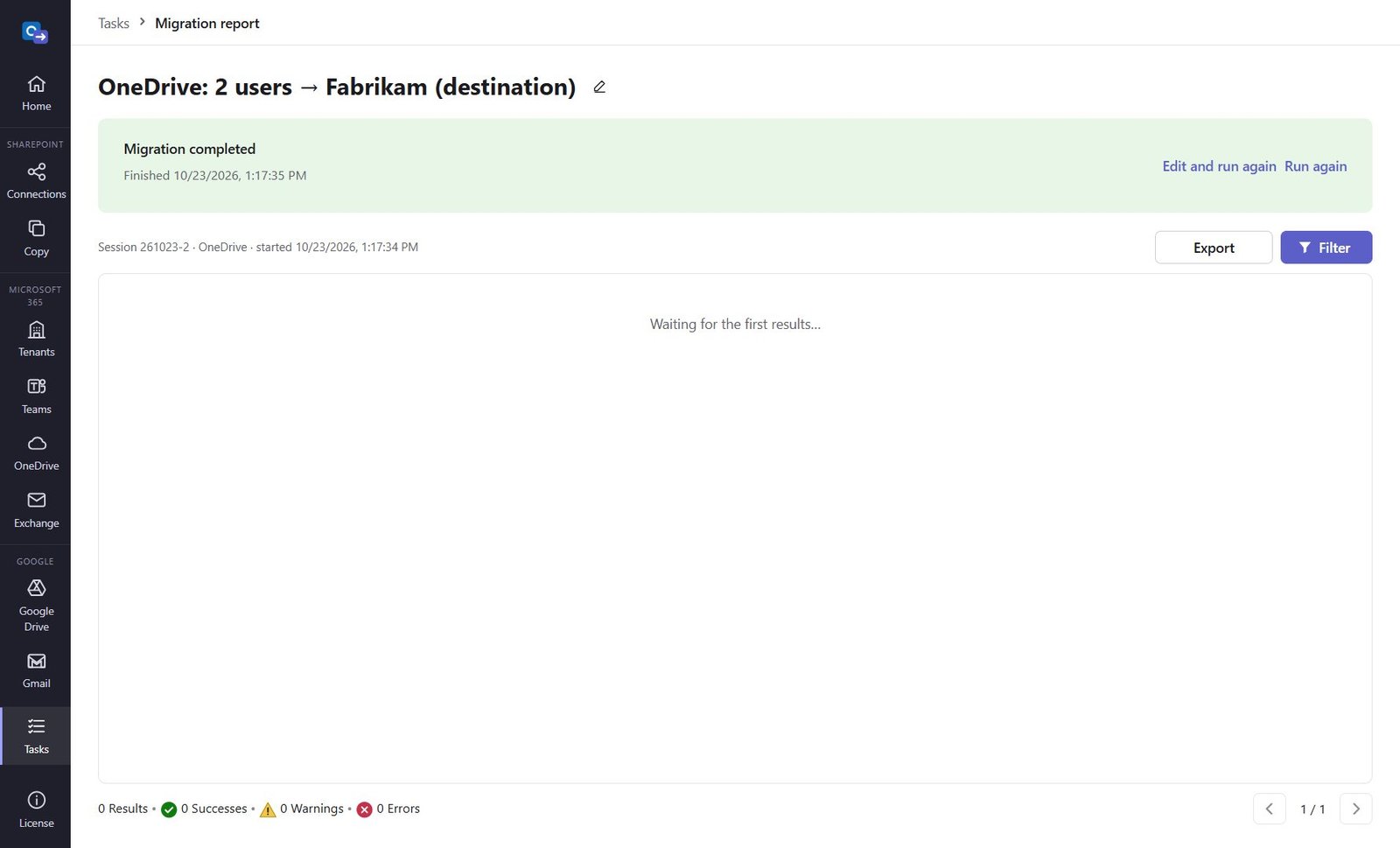
Choose the conflict rule (copy if newer) and click Start migration or Schedule. Files keep their created and modified dates; large files are copied in parts.
Good to know
- Sharing links and permissions are not copied, so nobody is notified.
- Run the same list again for a final catch-up – only changed files are copied.
Need help?
Search the help center, open a support ticket, or let us run the migration for you.
Related guides
Migrate Exchange Online mailboxes to another tenant
Mail in every folder, contacts and calendars – no invitations sent, safe to run again.
3 steps · 10 minutes to set upConnect the source and destination Microsoft 365 tenants
The App ID (Microsoft Graph application permissions) that Teams, OneDrive, Exchange and Gmail migrations use.
4 steps · 15 minutes per tenant (admin)