Before you start
- Both tenants added on the Tenants page (see Connect the tenants).
- The destination users exist (licensed).
Step 1: Choose the tenants
Open Teams. Pick the source and destination tenant.
Step 2: List the groups and teams
Import CSV (SourceDisplayName, SourceMailNickname, DestinationDisplayName, DestinationMailNickname, Type) or Add from source. Per row choose Group or Team – a group can become a team. Click Check: each source is found and you see what will be created or merged.
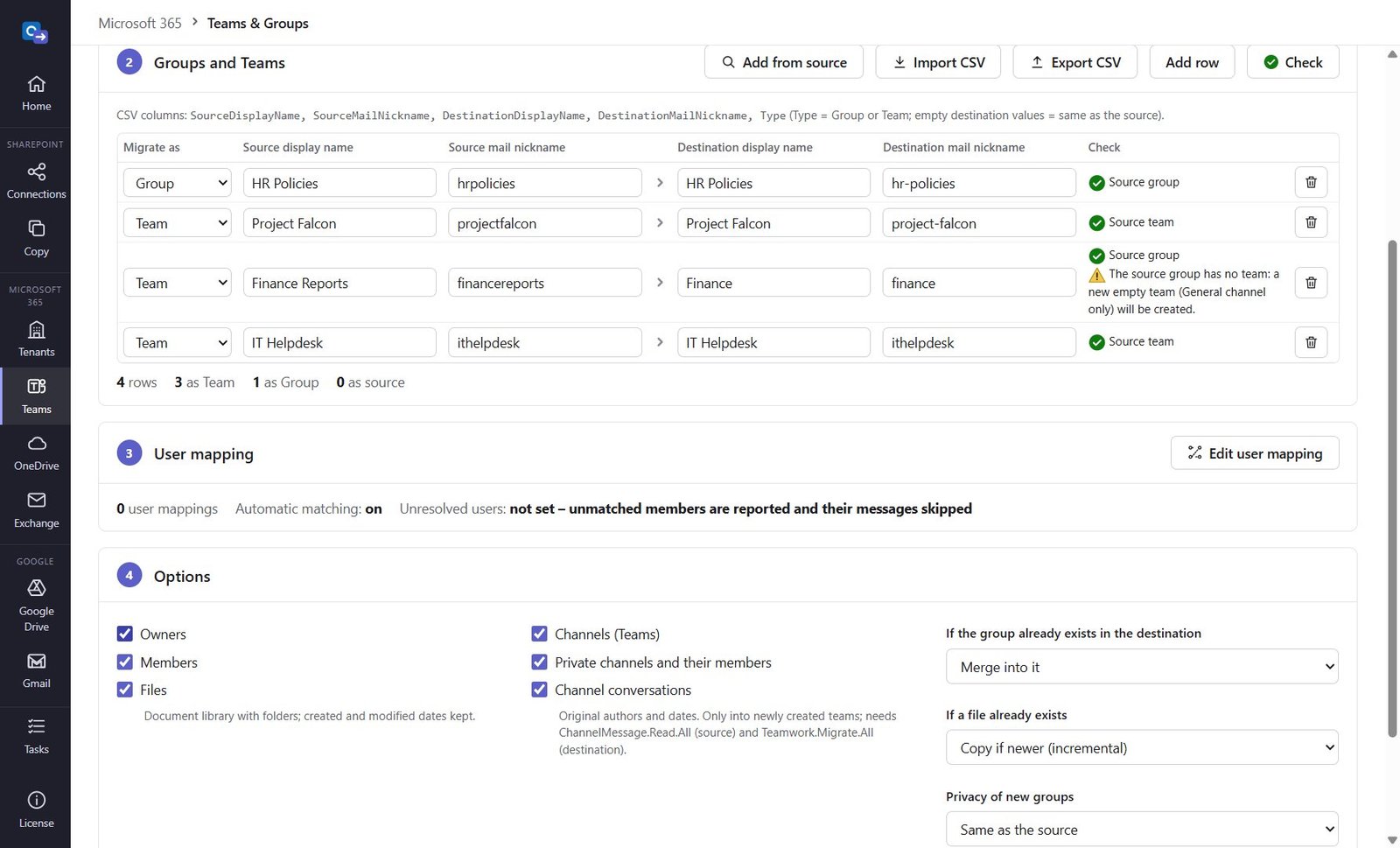
Step 3: Map the users
Edit user mapping: users are matched automatically by address (and name@ a destination domain); add mappings for the rest or import a CSV. Set an Unresolved users account – messages from people without a match keep their name.
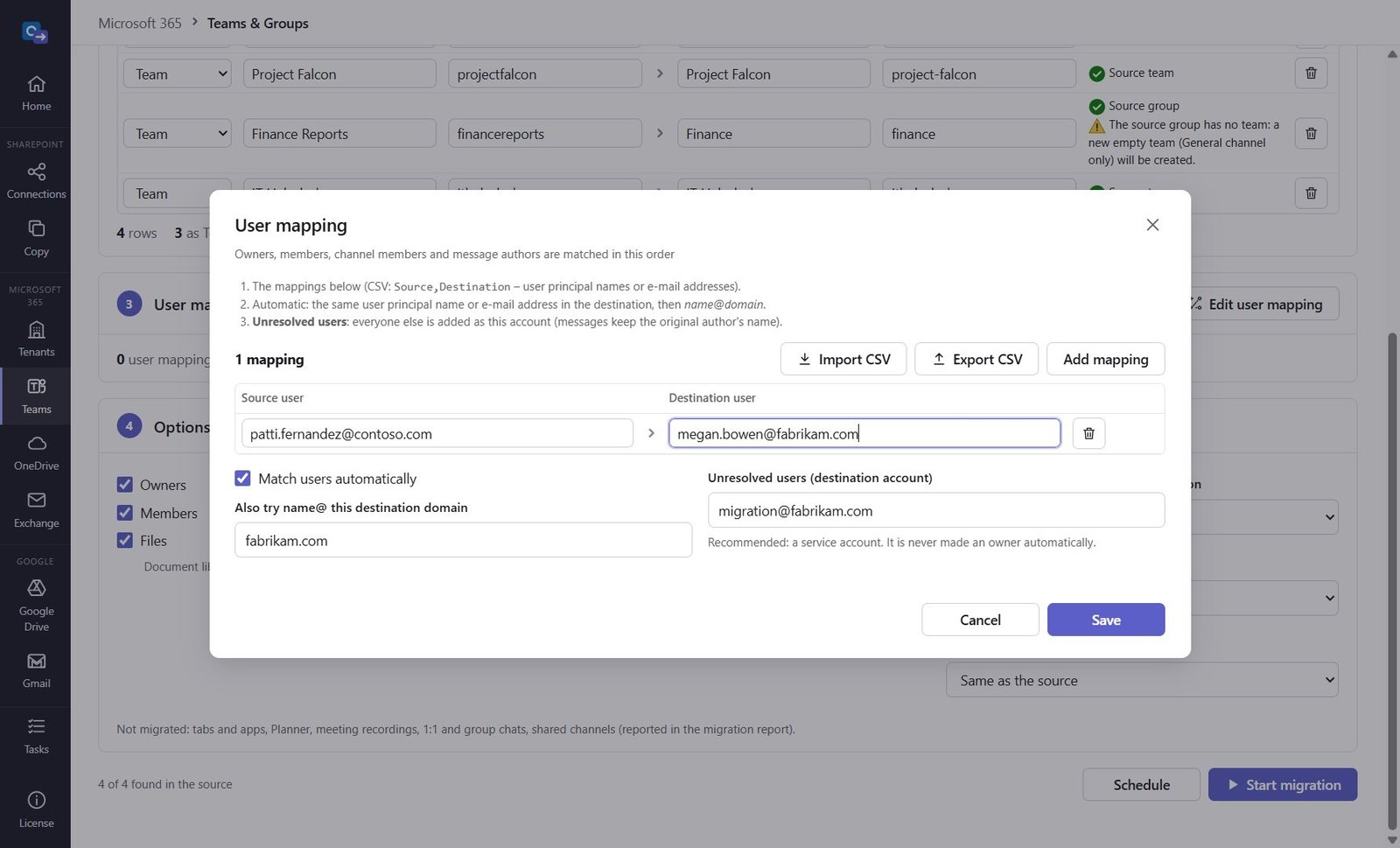
Step 4: Choose options and start
Options: owners, members, files, channels, private channels, conversations, what to do if the group exists (merge or skip), privacy of new groups. Click Start migration – the summary lists warnings and missing permissions before anything runs.
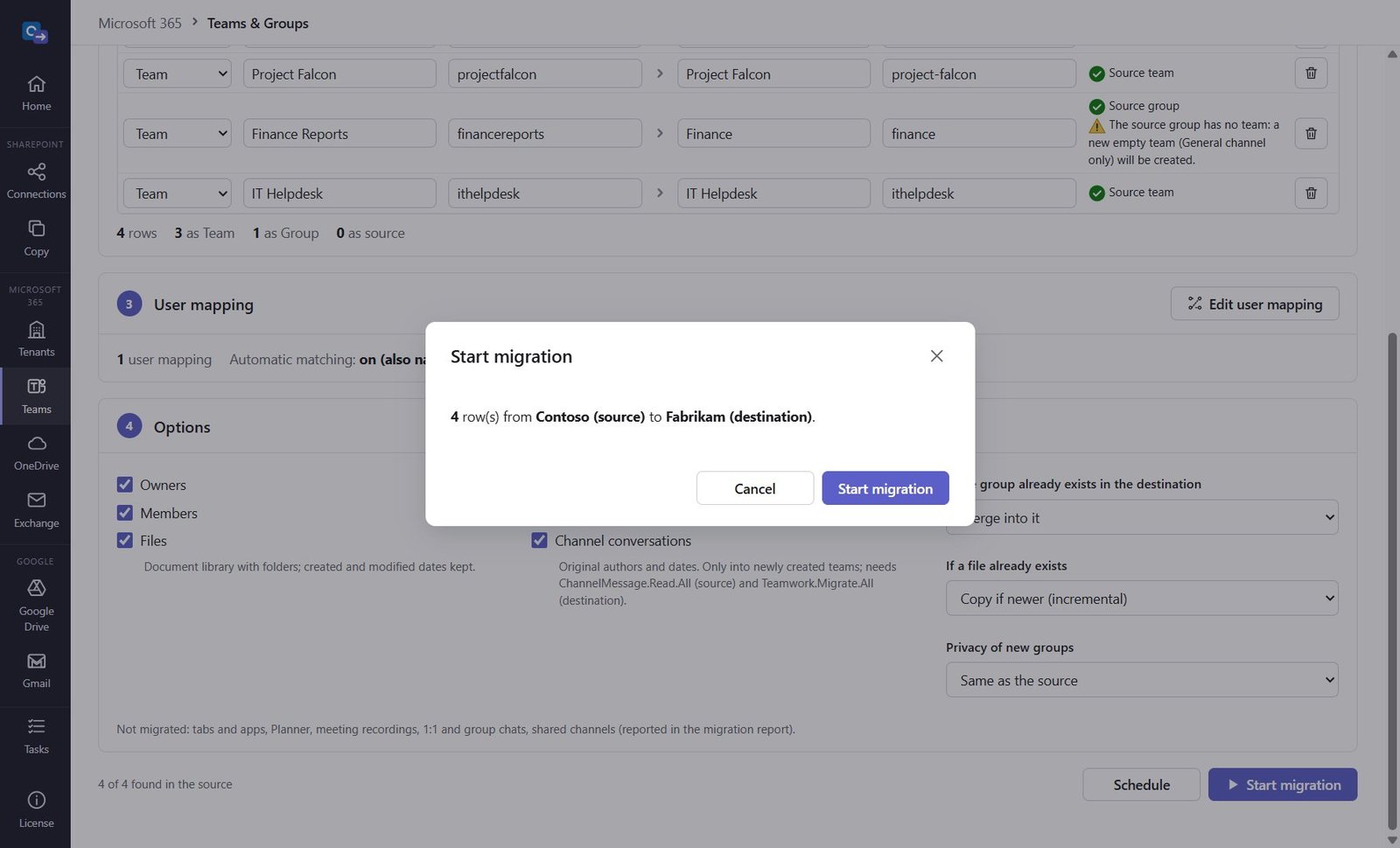
Step 5: Check the report
Every group, team, channel, member, file and conversation appears in the report.
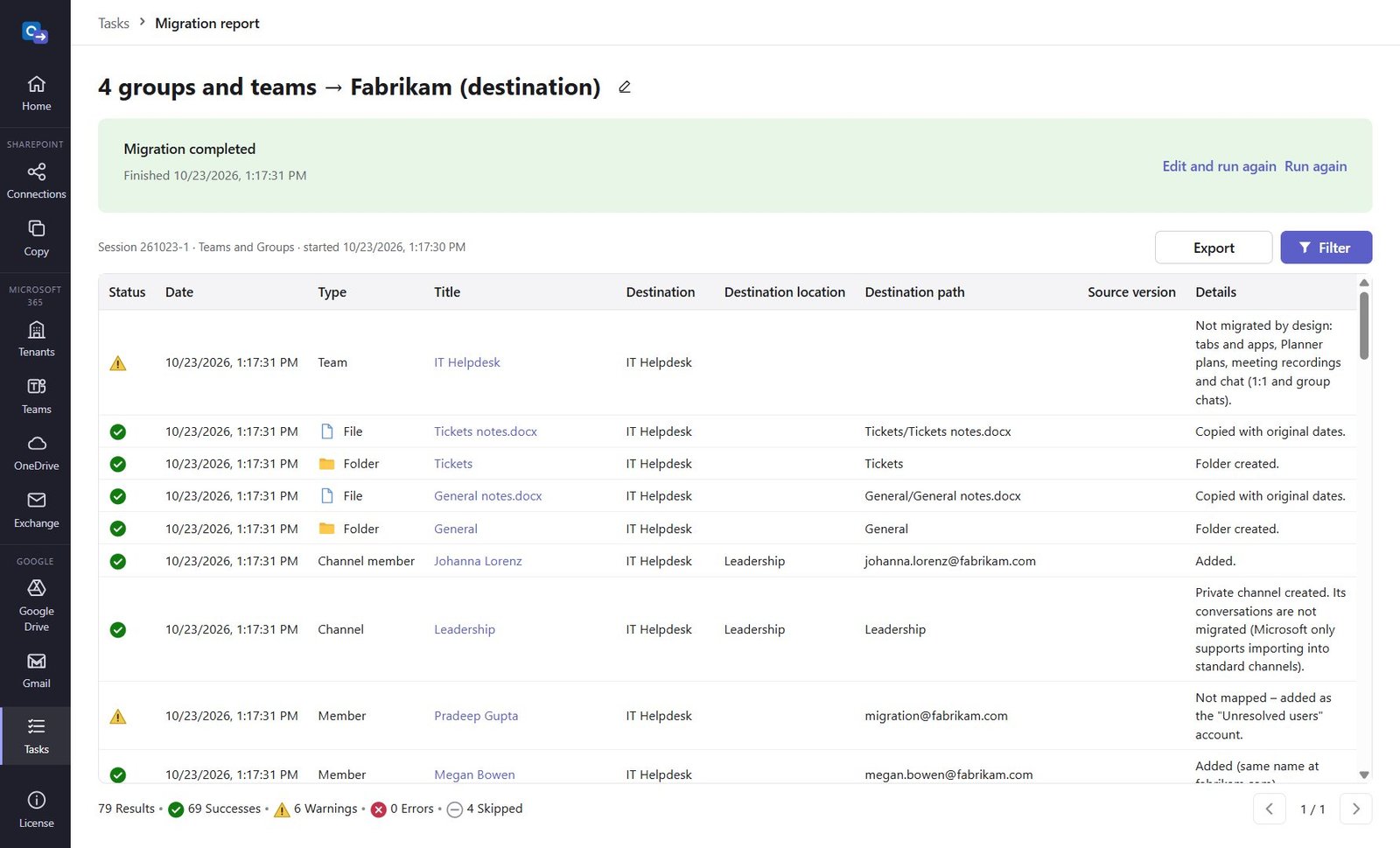
Good to know
- Conversations are imported only into teams the app creates (Microsoft's migration API); not migrated: tabs and apps, Planner, meeting recordings, 1:1 and group chats, shared channels.
Need help?
Search the help center, open a support ticket, or let us run the migration for you.
Related guides
Connect the source and destination Microsoft 365 tenants
The App ID (Microsoft Graph application permissions) that Teams, OneDrive, Exchange and Gmail migrations use.
4 steps · 15 minutes per tenant (admin)Migrate OneDrive to another Microsoft 365 tenant
Every user's OneDrive with folders, files and dates – into the root or a folder of your choice.
3 steps · 10 minutes to set up